
The leads list
Everyone the agent is talking to, or has talked to, in one table, with views and filters to find the ones that need you.
Open All leads in the menu, under Leads. Each row is one person, known by their phone number. A person is one lead for life, however many times they contact you and however many campaigns they are in. The number beside All leads in the menu counts the leads waiting on your team.
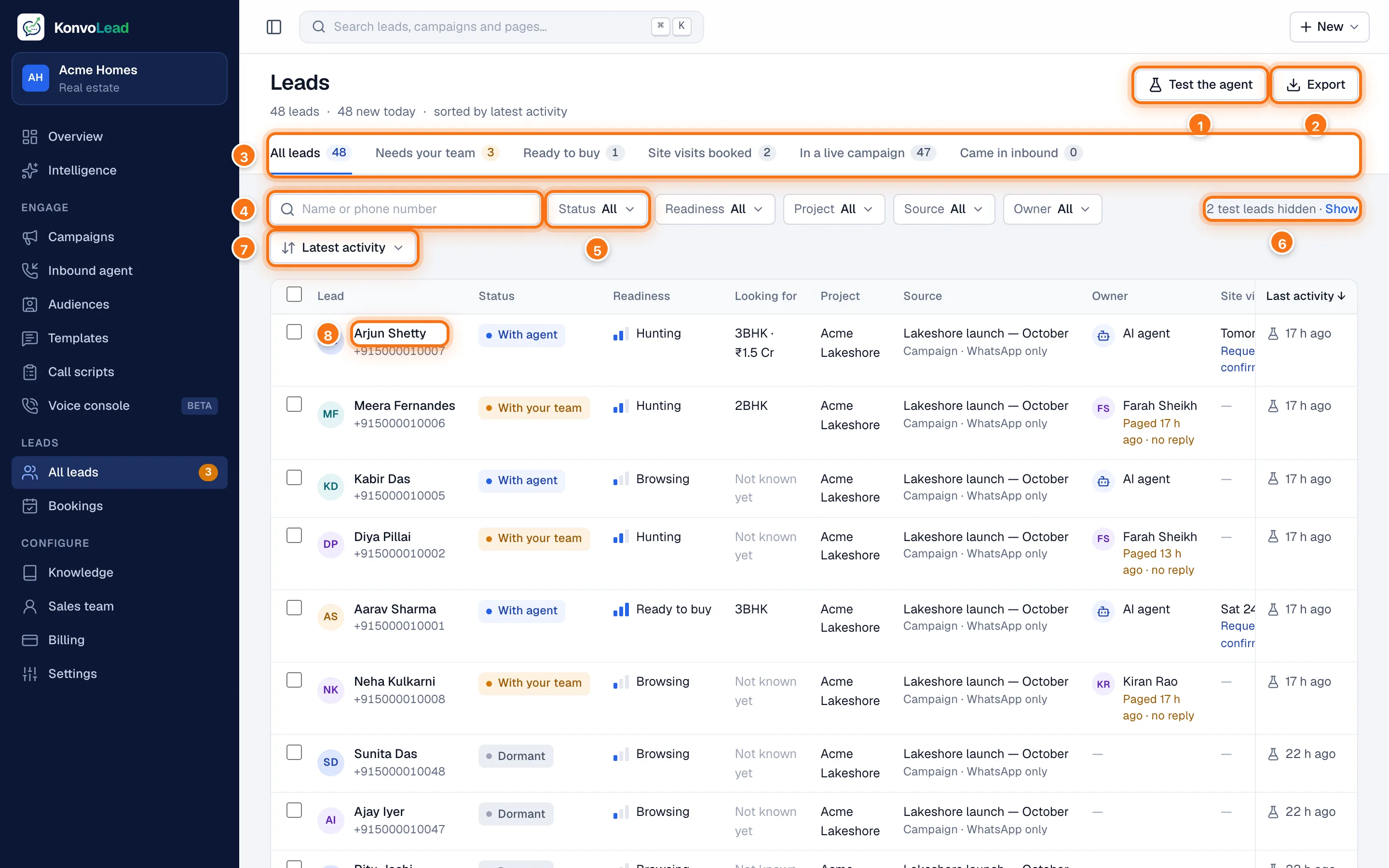
- Test the agent creates a test lead you can chat as. See Testing the agent yourself.
- Export downloads every lead the current view and filters show, as a spreadsheet.
- The views. See Views below.
- Search by name or phone number. The list updates as you type.
- The filters: Status, Readiness, Project (when you have more than one), Source and Owner. See Filters.
- Test leads are hidden. Click Show to include them.
- The order: Latest activity, Newest first, Oldest first or Name A–Z.
- Click a lead's name to see them in a panel beside the list. See The side panel.
Refresh the page to see new leads and new messages. At the bottom of the table you can show 25, 50 or 100 rows a page and move between pages.
Views
The tabs above the filters each show one group of leads, with how many are in it.
| View | Who is in it |
|---|---|
| All leads | Everyone (test leads only when shown). |
| Needs your team | Leads handed to your team, still waiting for someone to finish with them. See Human handover. |
| Ready to buy | Leads the agent judges ready to visit or decide. |
| Site visits booked | Leads with a site visit on record that wasn't cancelled: requested, confirmed or already held. For car dealers this view is Test drives booked. See Site visits and bookings. |
| In a live campaign | Leads a live campaign has already messaged or called. A campaign is live while it's running, and while it's paused if the lead was active in it in the last 30 days. Their messages are treated as replies to that campaign. |
| Came in inbound | Leads who first reached you themselves. |
A lead counts as "in a live campaign" only once that campaign has actually sent them something or called them. Being on a campaign's audience is not enough: until the first message goes out, anything they say to you is an ordinary inbound enquiry.
Reading the table
| Column | What it tells you |
|---|---|
| Lead | Their name and phone number. "No name yet" until the agent learns it. |
| Status | Who is looking after them. See Statuses. |
| Readiness | How ready they are: Browsing, Hunting (actively comparing) or Ready to buy. The bars fill as readiness grows. |
| Looking for | What they want so far, for example "3BHK · ₹1.5 Cr". A budget marked est. is our estimate from the conversation, not a figure they gave. |
| Project | The project the conversation is about, once known. |
| Source | Where they came from: the campaign currently talking to them (and its channels), Inbound, or a finished campaign shown greyed, for example "Campaign ended" or "Opted out of the campaign". |
| Owner | Who has them: the AI agent, or the sales rep they were handed to with what happened, for example "Paged 8 h ago · no reply". |
| Site visit | Their next site visit, or the latest one, and where it stands, for example "Requested — to confirm". |
| Last activity | When the last message either way was, with an icon for WhatsApp, a phone call or the test chat. |
On a narrow screen, scroll the table sideways to see the last columns.
Filters
- Status: With agent, With your team, Booked, Lost or Dormant.
- Readiness: Browsing, Hunting or Ready to buy.
- Project: one of your projects. Shown when you have more than one.
- Source: Any campaign, Inbound, Unattributed (leads from before sources were recorded), or one campaign by name.
- Owner: AI agent, Your team, or one sales rep by name.
Filters combine with the view and the search. The address in your browser keeps them, so you can bookmark a filtered list or send it to a colleague. If nothing matches, the table says "No leads match. Try clearing a filter."
Statuses
| Status | Meaning |
|---|---|
| With agent | The AI agent is handling the conversation. |
| With your team | The lead has been handed to your team. The agent still replies to them, but campaigns skip them until you mark the handoff resolved, and don't send later what fell due meanwhile. See Human handover. |
| Booked | Your team confirmed their site visit (or test drive), or they came. If it's cancelled, moved to a new time or they don't come, they go back to With agent. |
| Lost | They opted out, or said no to a campaign's message. If they write to you again, they go back to With agent. |
| Dormant | Imported for a campaign and not yet in a conversation. It changes to With agent when they reply. |
A visit the agent has only requested doesn't make a lead Booked: nobody has agreed to it yet. To find those, use the Site visit column or the Site visits booked view.
A lead With your team stays that way while the handoff is open, even if their visit is confirmed. When you mark the handoff resolved, they become Booked if a confirmed visit is waiting, or With agent if not.
The side panel
Click a lead's name to open a panel beside the list. The list stays where it was, so you can go down it one lead at a time.
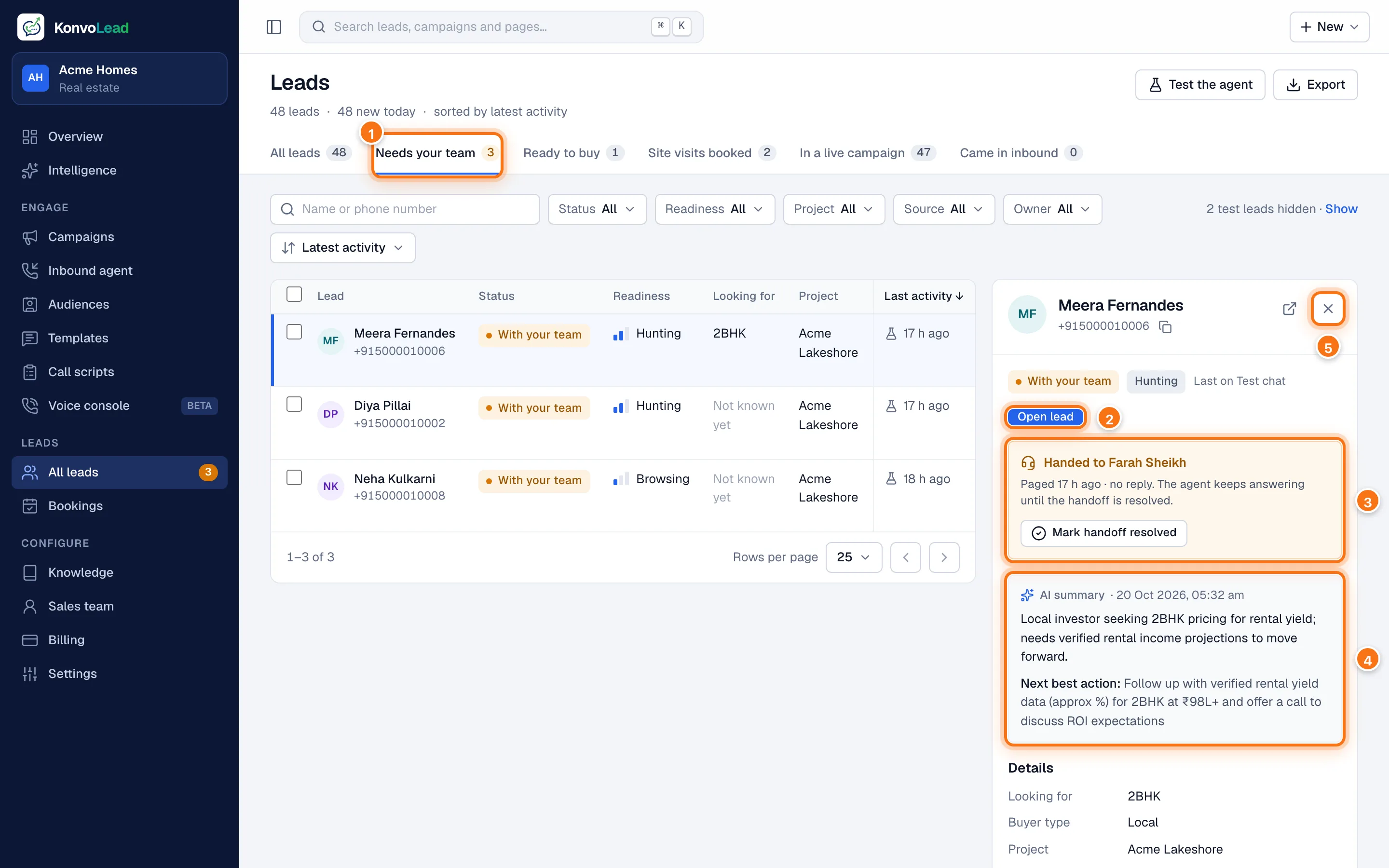
- The view this list was opened from, here Needs your team.
- Open lead opens the lead's full page. The ↗ at the top does the same. See A lead's page.
- What needs doing about this lead, if anything: here, who it was handed to and Mark handoff resolved. For a site visit still to confirm, it shows the visit and Confirm site visit.
- The AI summary of the conversation and the next best action. If there isn't one yet, click Summarise to write it.
- Close the panel.
Below these are the lead's Details (what they're looking for, buyer type, project, source, owner, first contact, last activity) and their Latest messages, with Open conversation to read the rest. The copy button next to the phone number copies it.
Acting on several leads
Tick the box beside each lead, or the box at the top to tick every lead on the page.
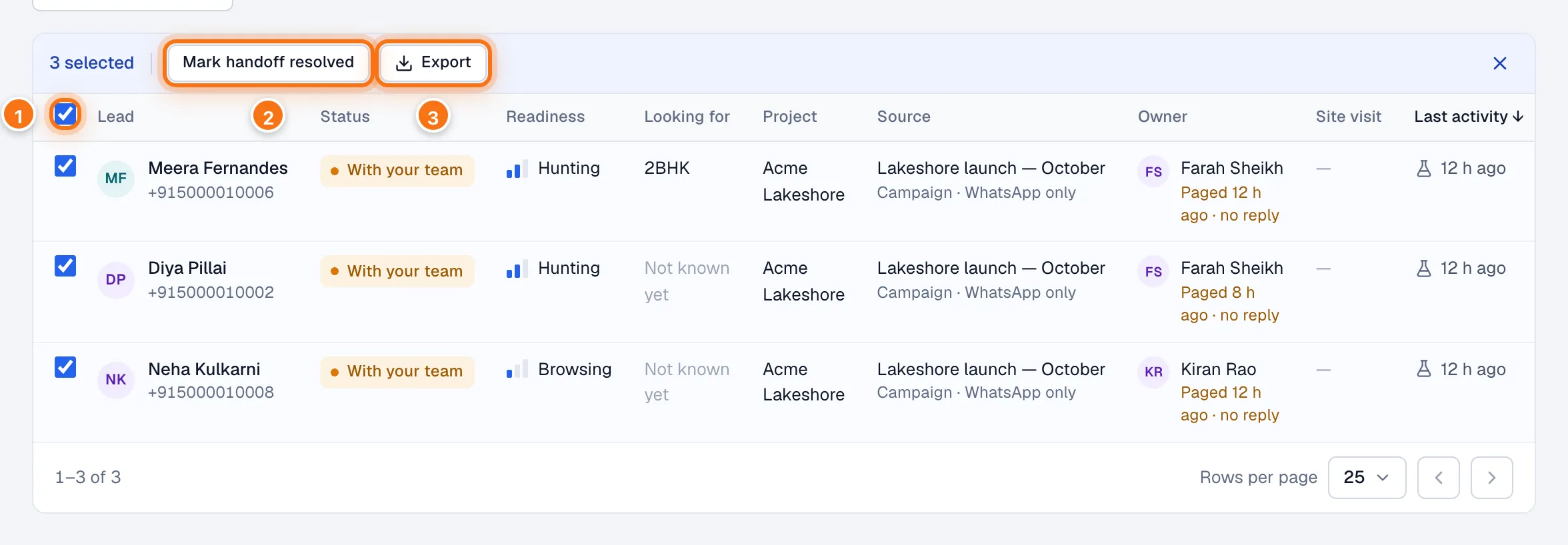
- The box at the top selects every lead on this page.
- Mark handoff resolved closes the open handoffs among the selected leads. If only some of them have one, the number in brackets says how many.
- Export downloads only the selected leads.
The × on the right clears the selection.
Test leads
Test leads are leads you create yourself to try the agent without WhatsApp or a phone. They are hidden from the list and from your dashboard numbers. When some are hidden, a line such as "2 test leads hidden · Show" appears above the table. See Testing the agent yourself.