
Signing in and resetting your password
How to accept your invite, sign in each day, change your password, and get back in if you forget it.
Accept your invite
There's no public sign-up. KonvoLead sets up your login and emails you an invite.
- Open the invite email and click the link.
- You land on Join [your company] on KonvoLead. Your work email is filled in.
- Type Your name (optional).
- Choose a password and type it again under Type it again. It needs at least 8 characters; the rules tick as you type.
- Click Join [your company].
You're signed in. If you're the first person from your company, you go to the welcome checklist.
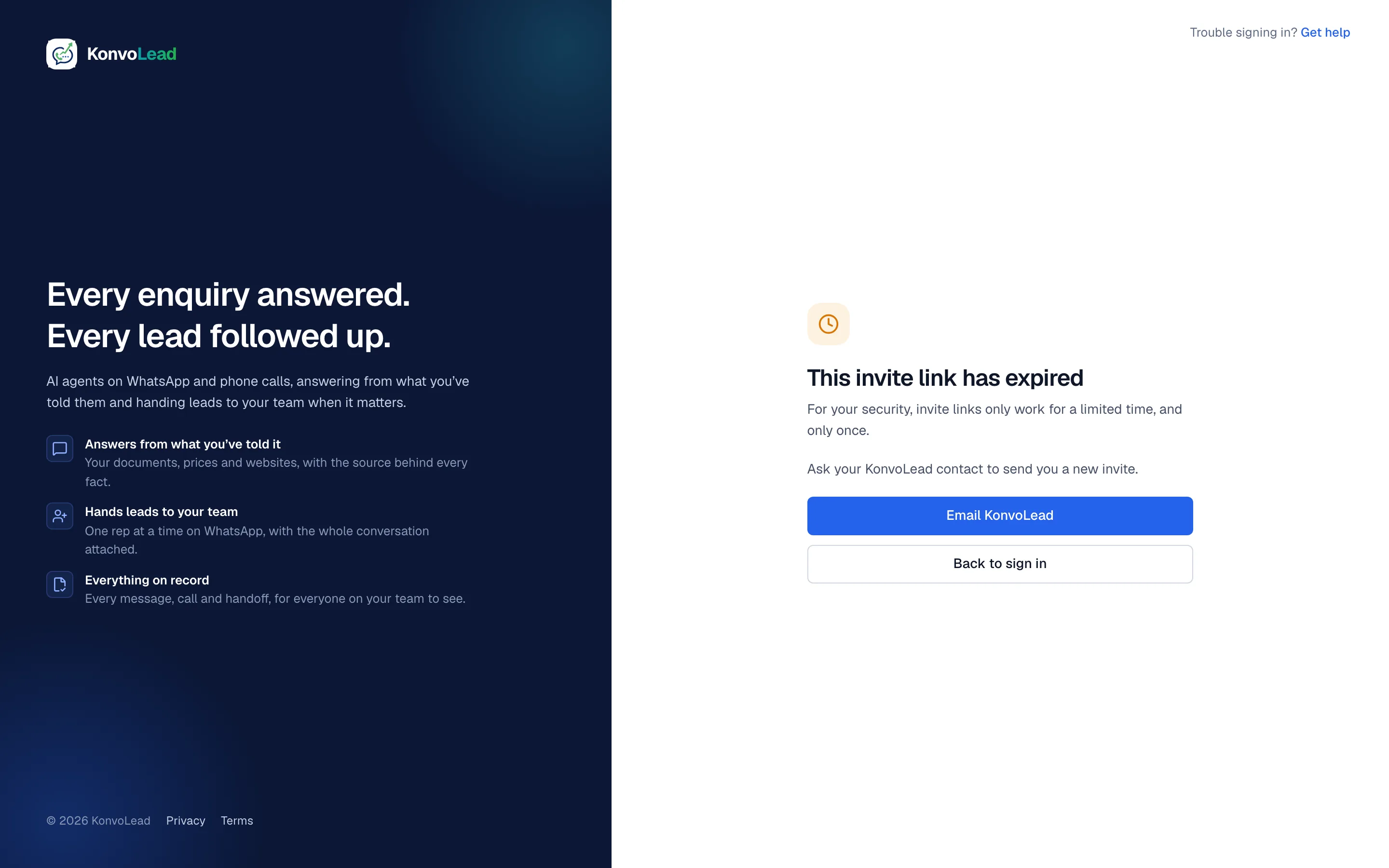
If the link doesn't work, you'll see This invite link has expired. Invite links work once, and only for a limited time. Click Email KonvoLead to ask for a new one.
Sign in
Go to app.konvolead.com.
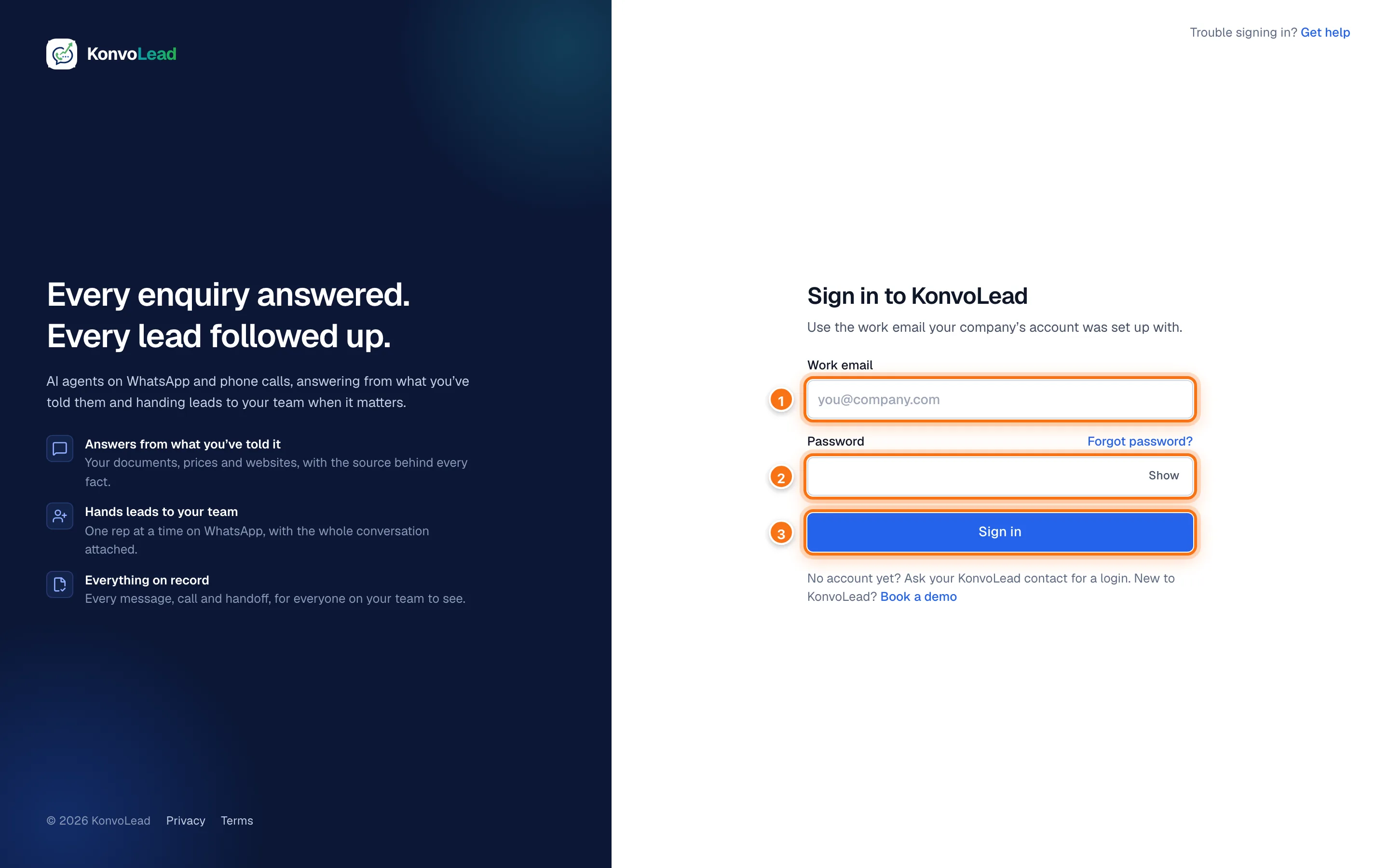
- Type your Work email.
- Type your Password. Show reveals what you typed.
- Click Sign in.
You land on Overview, or on the page you were trying to open when you were asked to sign in. The first time, the first person from your company lands on the welcome checklist.
Reset a forgotten password
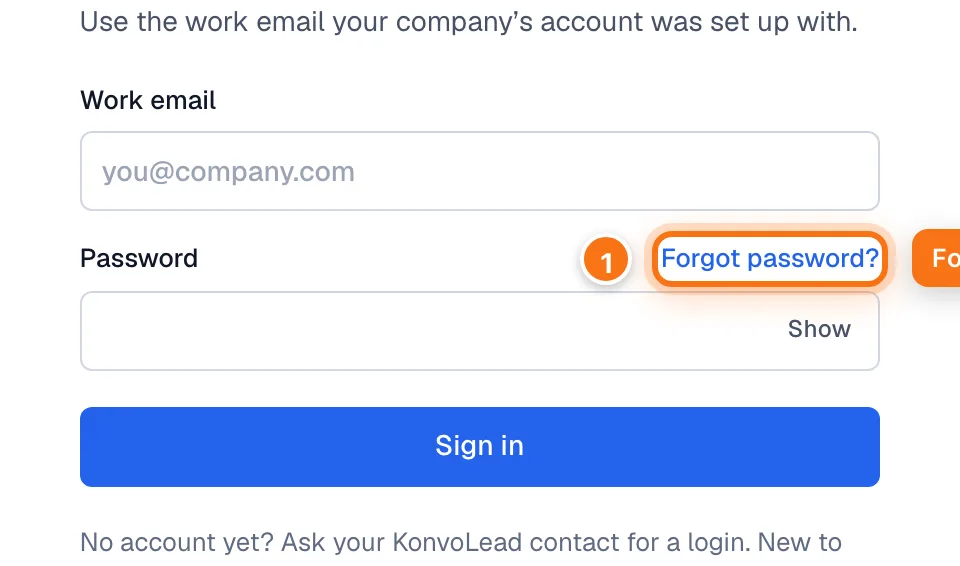
On the sign-in page, click Forgot password?.
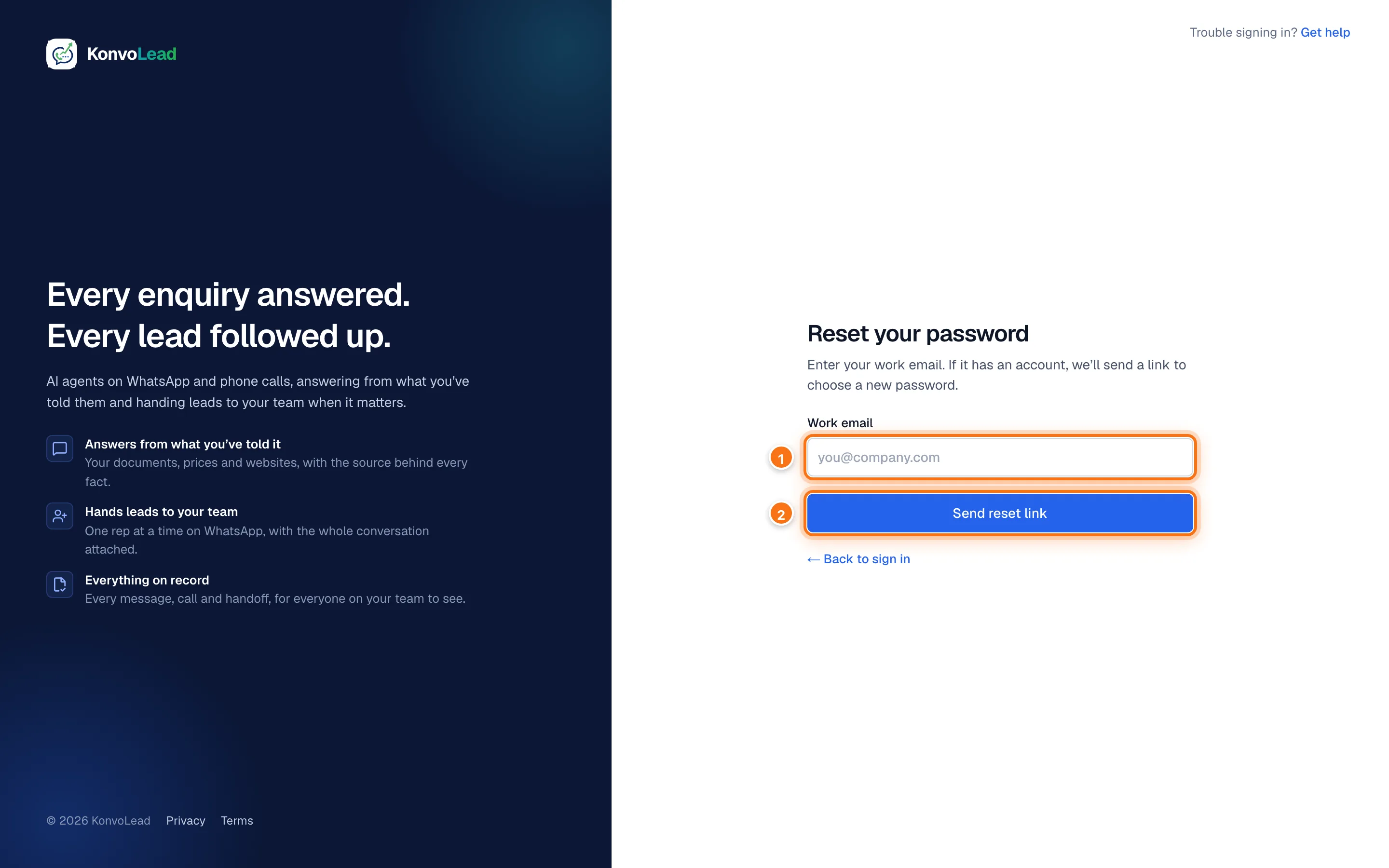
On Reset your password, type your Work email and click Send reset link.
You'll see Check your email. We show this whether or not the email has an account, so nobody can use this page to find out who has one.
Open the email and click the link. It works once.
On Choose a new password, type the new password twice and click Save new password.
You're signed in with the new password.
Nothing arrived after a few minutes? Check your spam folder. Still nothing? That email may not have an account: ask your KonvoLead contact.
Change your password
While you're signed in, you can change your password at any time.
Click your name at the bottom of the menu, then click Change password. Or open Settings, scroll to People who sign in, and click Change password under the list.
Type your Current password (1). Don't know it? Click Forgot it? (2), and follow the steps under Reset a forgotten password.
Type the new password under New password (3), and again under Type it again (4). It needs at least 8 characters, and it can't be the password you have now. The rules under the fields tick as you type.
Sign me out on other devices and browsers (5) is ticked. Leave it ticked to sign out every other browser and phone signed in as you; this one stays signed in. Untick it to stay signed in everywhere.
Click Change password (6).
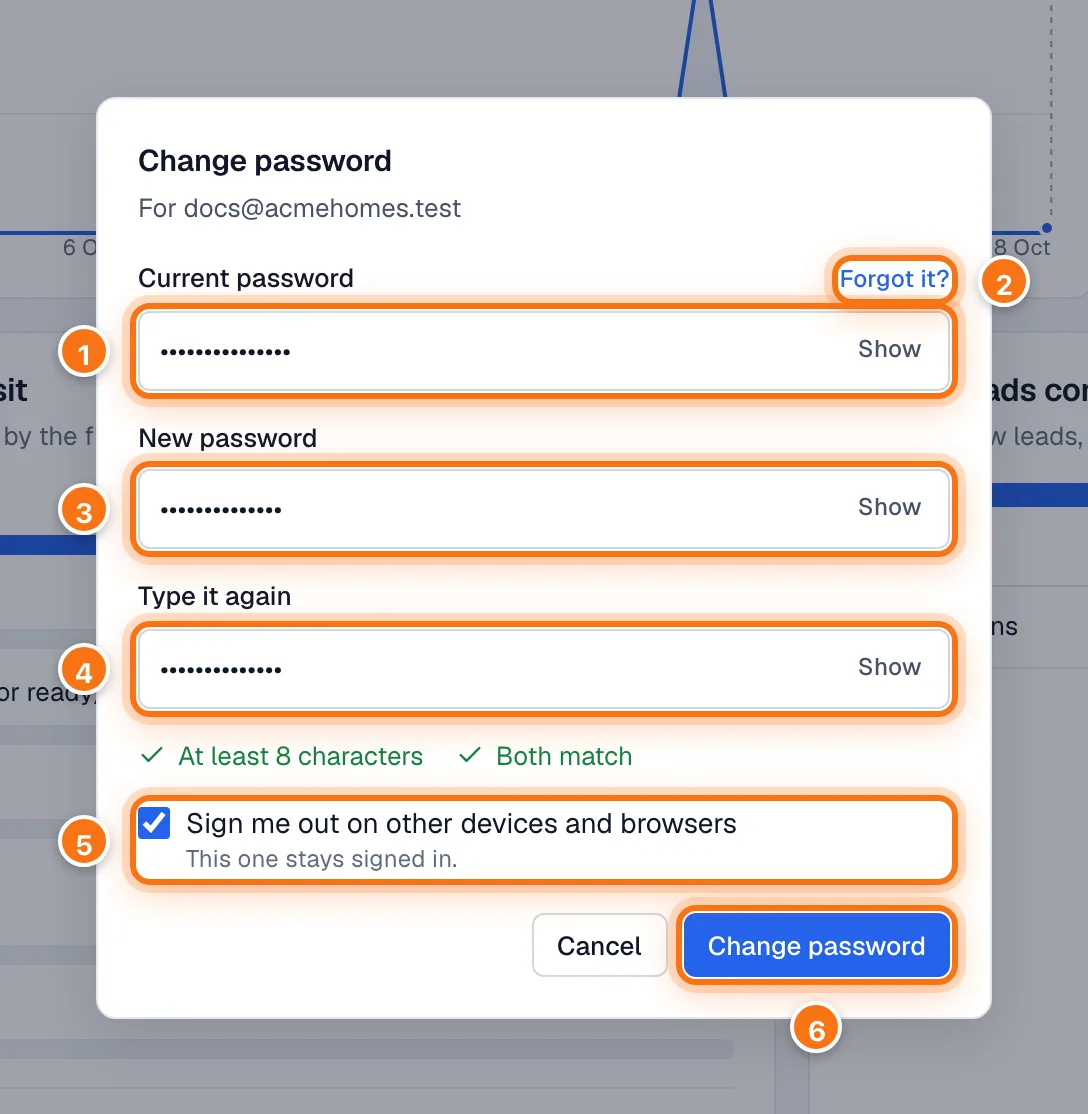
You'll see Your password is changed. Use the new one next time you sign in.
"Your current password isn't right"? Check for typos and try again. Nothing has changed: your old password still works.
Sign out, and light or dark
Click your name at the bottom of the menu.
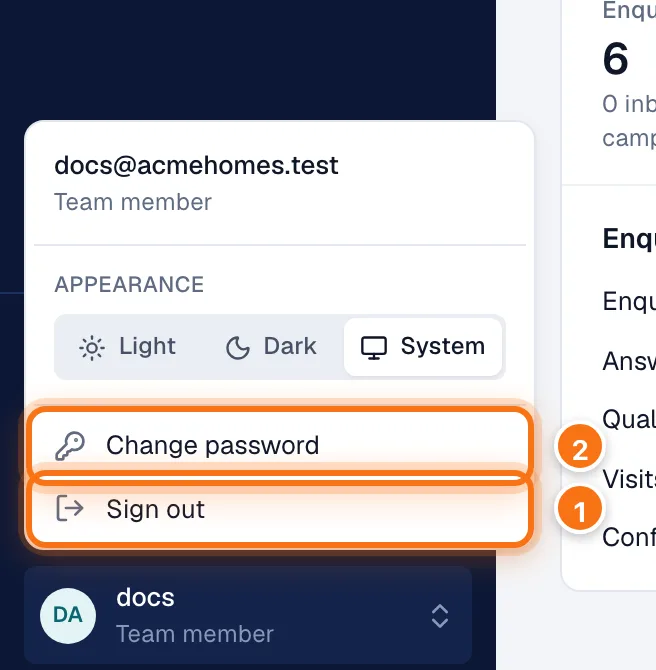
The menu shows the email you're signed in with. Under Appearance, pick Light, Dark, or System to follow your computer's setting. Change password (2) opens the form in Change your password. Click Sign out (1) to sign out.
Logins for colleagues
Everyone on your team should have their own login. To add a colleague, ask your KonvoLead contact to invite them. To see who can sign in, open Settings and scroll to People who sign in.
Your sales reps don't need a login: the agent reaches them on WhatsApp. See Adding your sales team.