
Call scripts
Write what the qualifying agent says, practise it yourself, and publish it for your campaigns to use.
A call script is what a qualifying agent works from, on calls and on WhatsApp. It works only from the script, with no knowledge base, and hands interested leads straight to your team. Use one when you want the agent to ask a few questions and pass on whoever is interested, rather than answer everything about a project. See Two kinds of agent.
Open Call scripts in the menu.
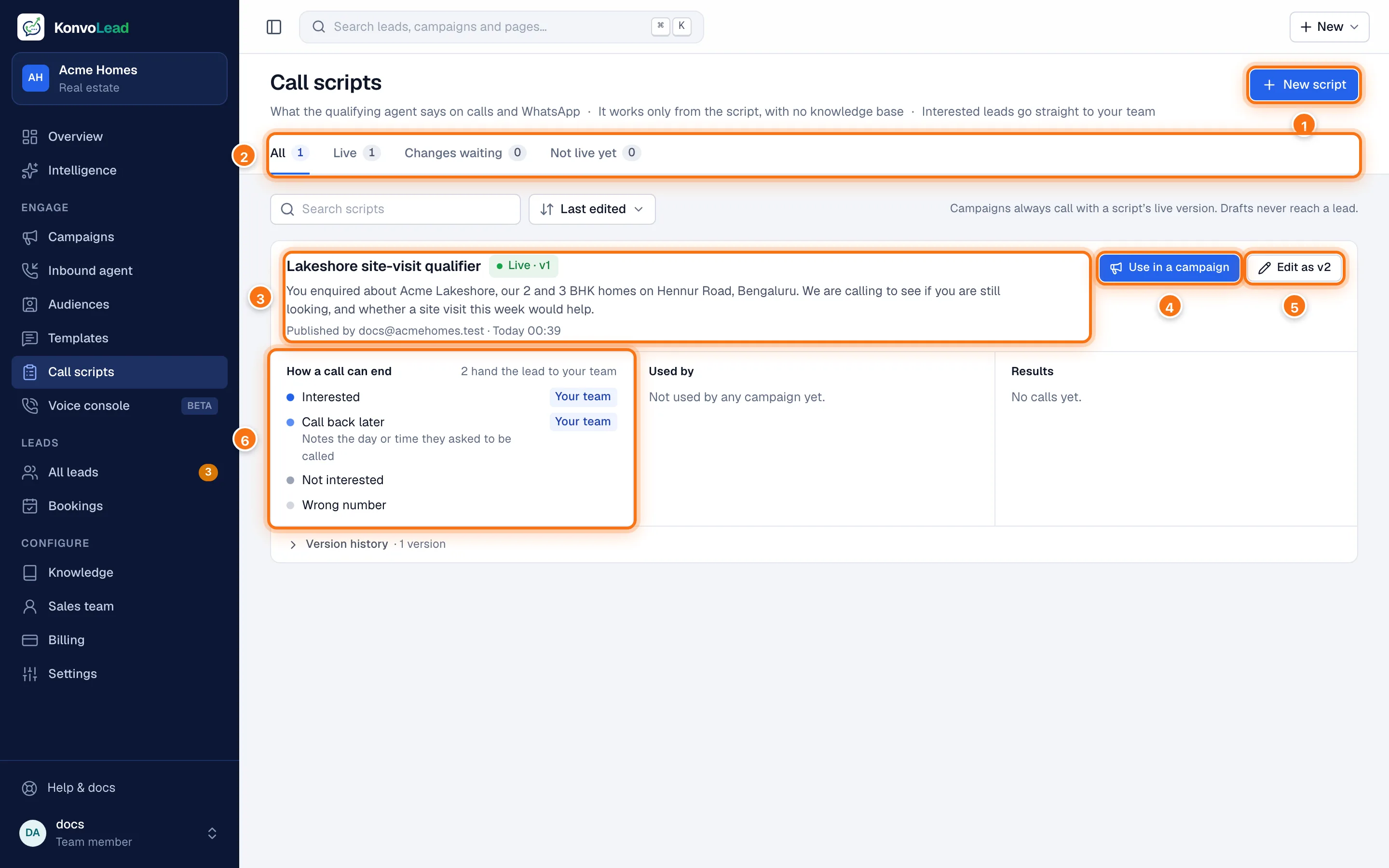
- New script starts one.
- Show All scripts, those Live, those with Changes waiting (a new version not published yet), or those Not live yet.
- Each script: its name, its live version, how it opens, and who published it.
- Use in a campaign starts a campaign with this script.
- Edit as v2 starts the next version. See Change a live script.
- How a call can end, and which endings pass the lead to your team. Beside it, the campaigns that use the script and its results.
Campaigns always use a script's live version. A draft never reaches a lead.
Start a script
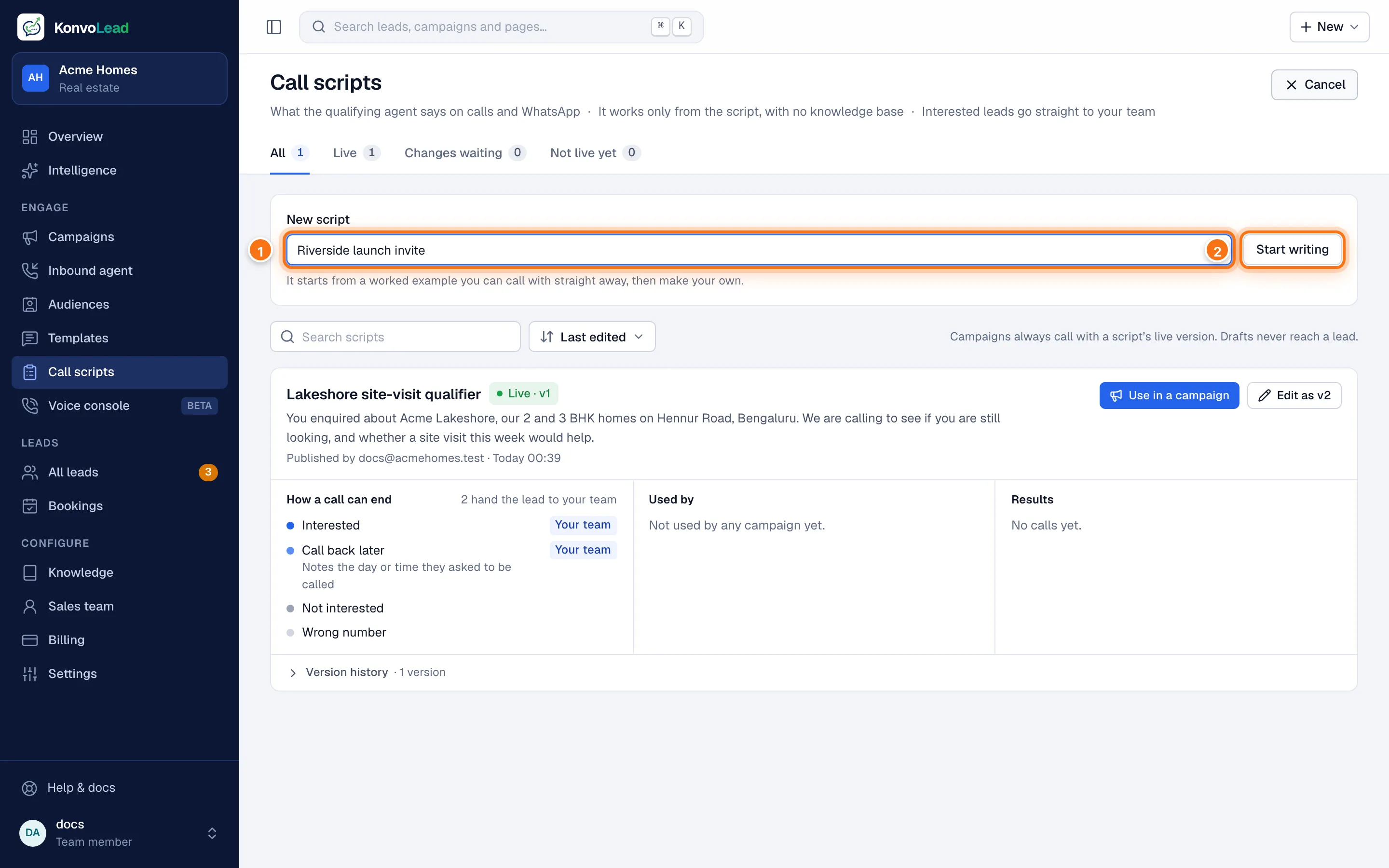
- Click New script and give it a name, for example "Riverside launch invite".
- Click Start writing.
It starts from a worked example you could call with straight away. Then make it your own.
The script's page
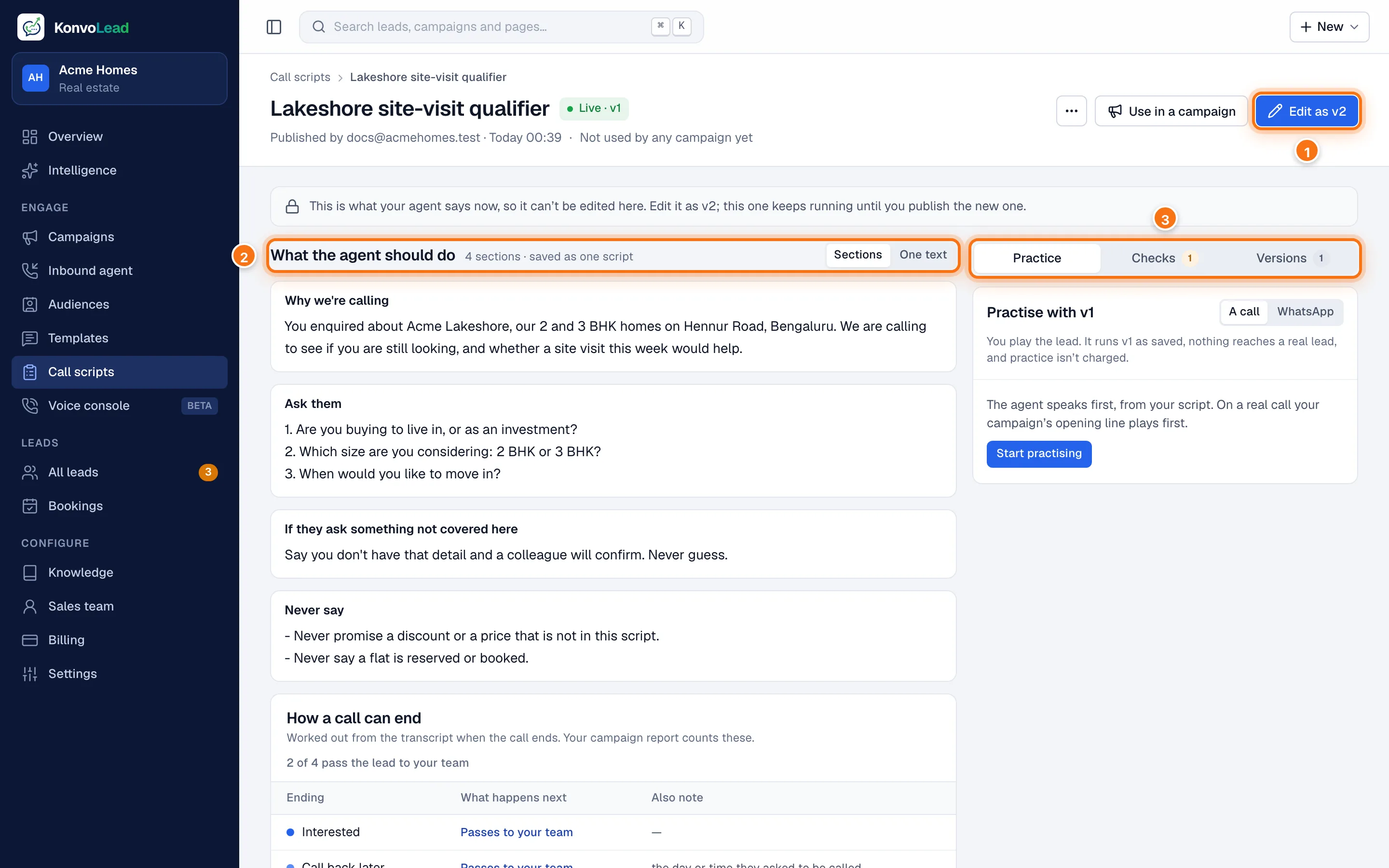
- Edit as v2: a live script can't be edited in place. Your changes become the next version, and this one keeps running until you publish it.
- What the agent should do: your script. Show it as Sections, one card per heading, or as One text. In one text, a line starting with
##becomes a section. - The side panel: Practice, Checks and Versions.
What to write
Write it as you'd brief a new salesperson. The worked example uses four sections:
- Why we're calling: who you are and why you're getting in touch.
- Ask them: the questions to ask, in order.
- If they ask something not covered here: usually, say a colleague will confirm. Never guess.
- Never say: anything the agent must not say or promise.
Click a section to edit it. Add a section with New section. Changes save as you type.
How a call can end
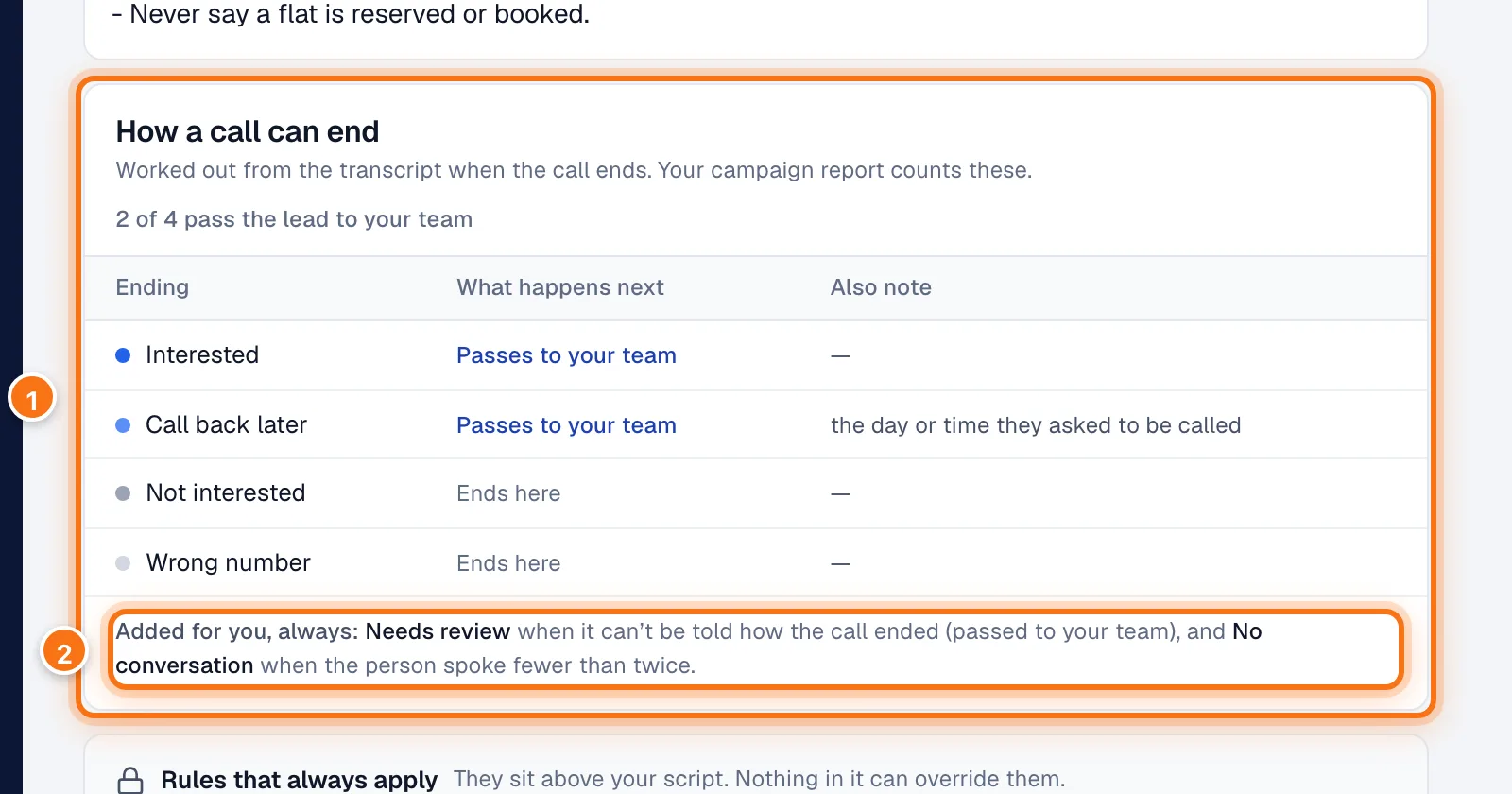
- Each ending, What happens next (Passes to your team, or Ends here), and anything to note, for example the day or time they asked to be called back. Add one with Add an ending. Switch on Books a visit for an ending where the person agrees to visit: the time is read from the call, and a visit request is recorded for your team to confirm.
- Two endings are always added for you: Needs review, when it can't be told how the call ended (passed to your team), and No conversation, when the person spoke fewer than twice.
How each call ended is worked out from the conversation when it finishes. Your campaign's page and report count them.
Rules that always apply
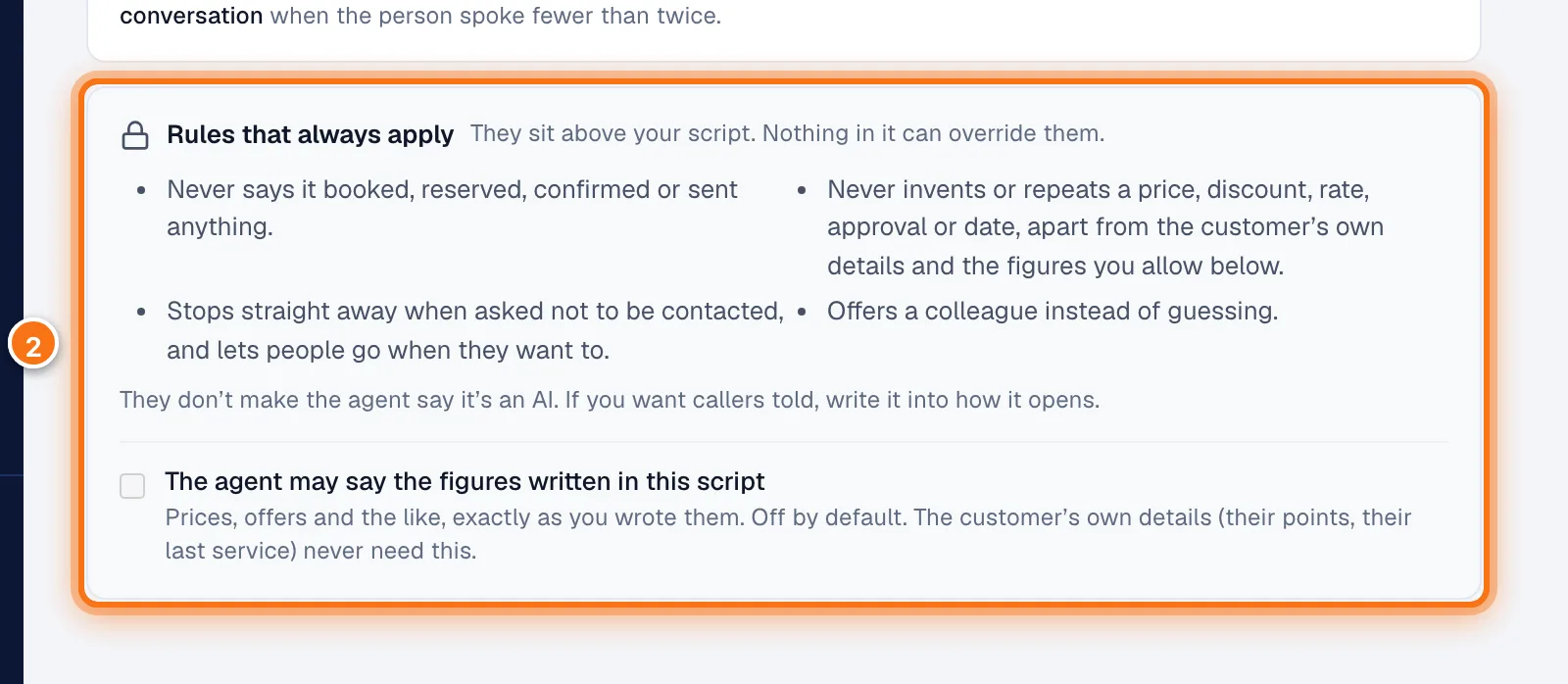
- These rules sit above your script. Nothing in it can override them. The agent never says it booked, reserved or confirmed anything; never invents or repeats a price, discount, rate or date; stops as soon as someone asks not to be contacted; and offers a colleague instead of guessing.
- The agent may say the figures written in this script: tick this to let it repeat prices, offers and the like exactly as you wrote them. It's off by default. A customer's own details from your audience file never need it.
The rules don't make the agent say it's an AI. If you want callers told, write it into how the call opens.
Selling lines
If your audience file has columns the agent may use (you choose these when you import the audience), you can add Selling lines in a draft: something to say to a group of customers, such as "car older than 10 years" or "has loyalty points". Each line applies to everyone, or only when all its conditions are true. A Note is how to speak to this person, and is always used when it fits. A Pitch is something to suggest: at most two a call.
Practise it
Before publishing, play the lead yourself. In the side panel, click Practice, choose A call or WhatsApp, then Start practising.
- It runs the version as saved, and nothing reaches a real lead. Once your account is charged per reply, each answer the agent gives is charged as a WhatsApp reply. See Testing the agent yourself.
- The agent speaks first, from your script. On a real call your campaign's opening line plays first.
- Reply at least twice, then click How would this end?. It runs the same check that files your real calls.
Checks lists anything to fix before publishing, and writing tips. Tips never stop you publishing; only the checks do.
Publish
Click Publish v1 (or the version you're on). Callers hear this version from their next call: campaigns that use the script don't need changing.
Versions shows each version and what changed from the one before.
Change a live script
- Click Edit as v2 on the script's page or the list.
- Change it, practise, and publish. Until then, the live version keeps running and the list shows the script under Changes waiting.
To drop the changes, open the draft and use … (More actions), then Discard this draft.
Use it in a campaign
Click Use in a campaign, or in the campaign form choose Qualifying agent and pick the script. Only published scripts are listed.