
Importing an audience
An audience is a list of people who agreed to hear from you. Import it once and use it in as many campaigns as you like.
Before you start
You can bring in:
- an Excel file (.xlsx) or a CSV file,
- a Google Sheet (share it as Anyone with the link (Viewer) first), or
- numbers pasted straight in, one per line (up to 5,000).
In a file or sheet:
- One row per person, with a row of column names at the top. Column order doesn't matter.
- A phone number column is required. Any common format works:
98765 43210,098765-43210,+91 98765 43210. A number without a country code is read as Indian, so add the code for anyone abroad (for example+971…). - A name column is recommended, so messages greet people by name.
- A language column is optional ("Hindi", "Kannada" and so on). Calls to that person open in their language.
- Any other column is kept and can be used in your messages. See Using extra columns in messages.
| Name | Phone | Language | Budget |
|---|---|---|---|
| Rahul Sharma | 98765 43210 | Hindi | 1Cr - 1.3Cr |
| Priya Nair | +91 91234 56789 | English | 80L - 1Cr |
Import a list
Open Audiences in the menu and click Import audience.
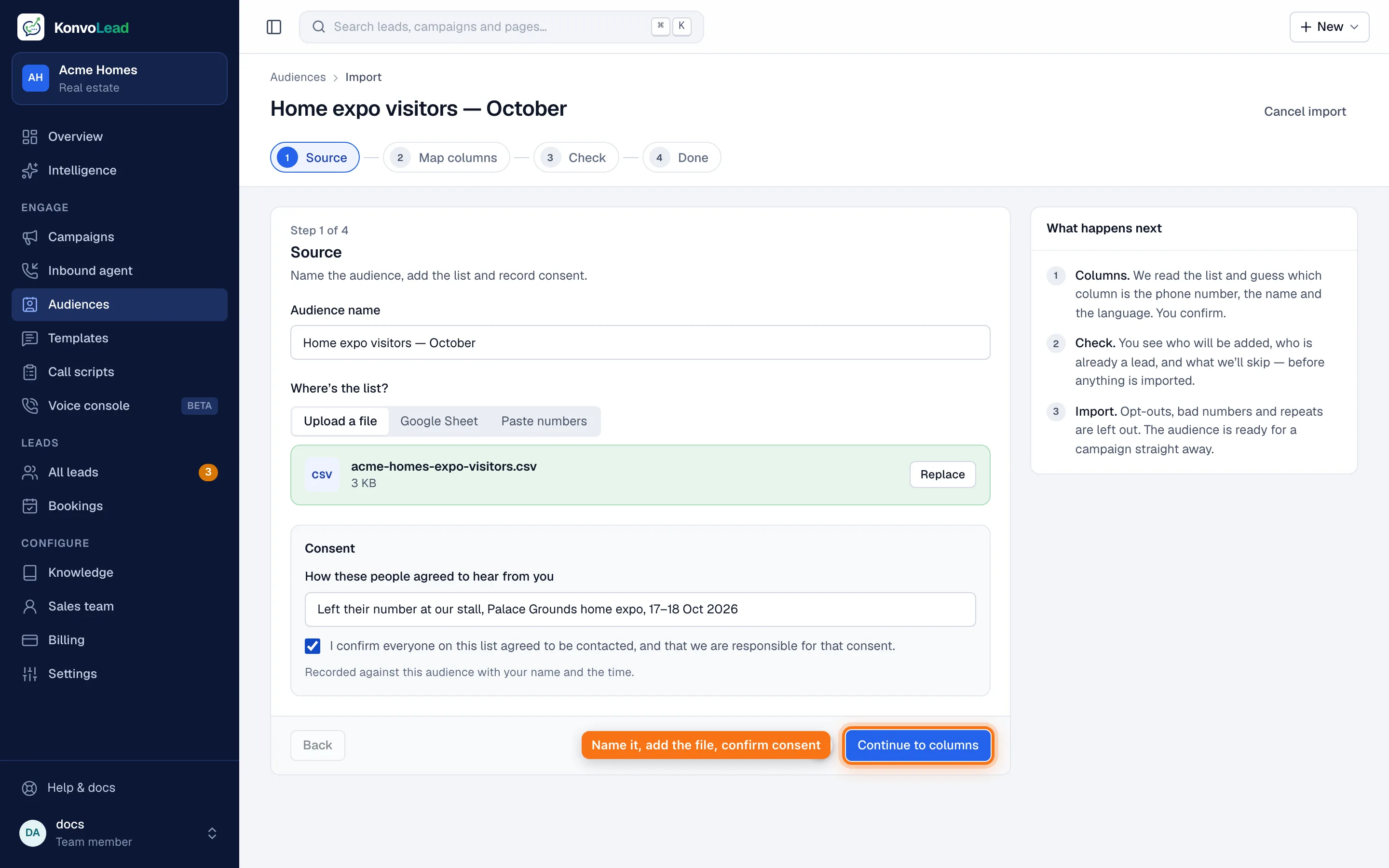
Step 1: Source
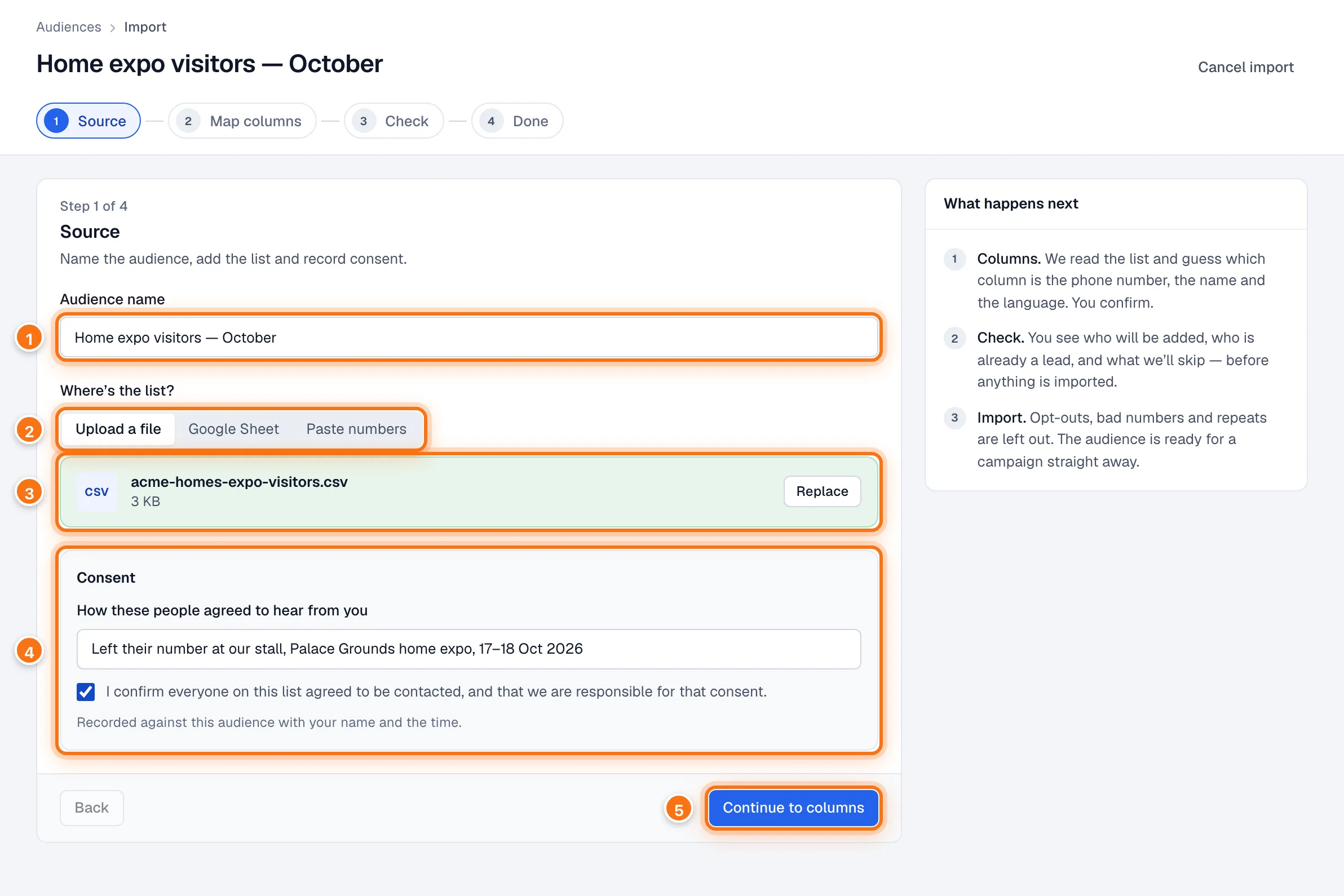
- Give the audience a name, for example "Home expo visitors — October". Only your team sees it.
- Choose where the list is: Upload a file, Google Sheet (paste its link) or Paste numbers.
- Add the file. To change it, click Replace.
- Under Consent, write how these people agreed to hear from you, for example "Left their number at our stall, Palace Grounds home expo". Then tick I confirm everyone on this list agreed to be contacted…. You can't continue without it. Your name and the time are recorded with the audience.
- Click Continue to columns.
From here on the import is saved as you go. If you leave, finish it later from Audiences.
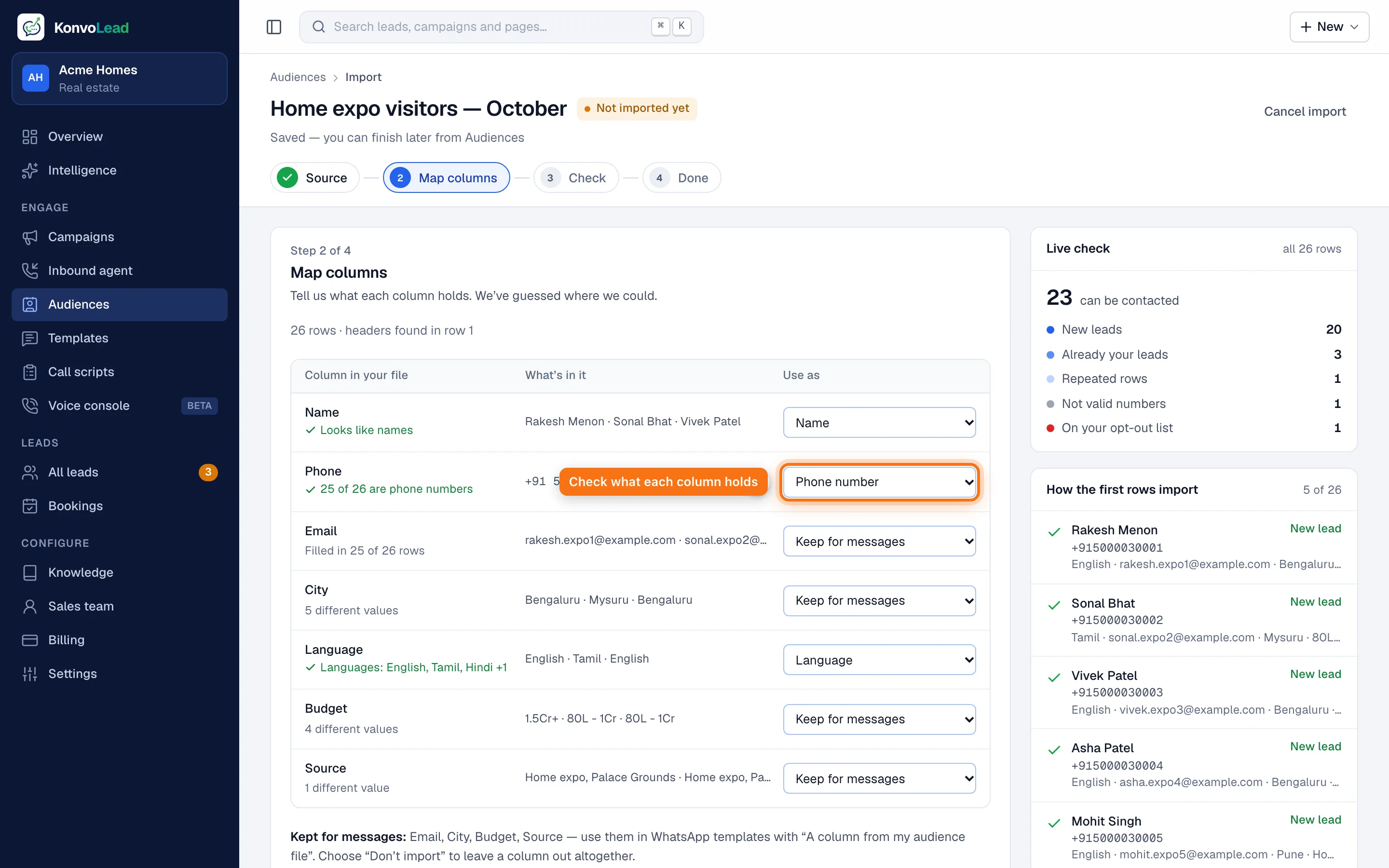
Step 2: Map columns
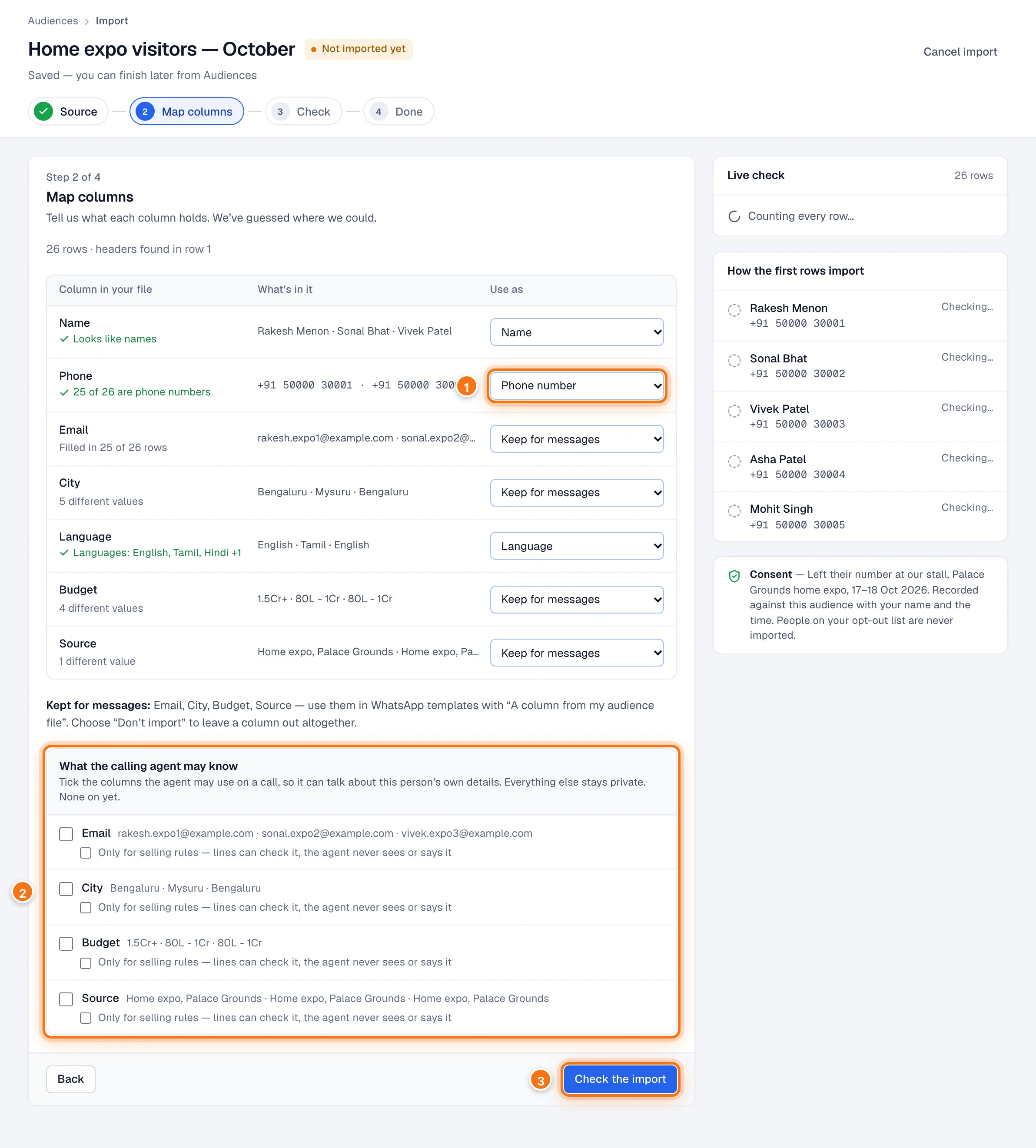
We read the list and guess what each column holds. The What's in it column shows a few values so you can check.
- Check the Use as choice for each column: Phone number, Name, Language, Keep for messages or Don't import. Only one column can be the phone number.
- What the calling agent may know (optional): tick a column if the agent may use it on a call, so it can talk about the person's own details (for example their budget). Unticked columns stay private. Only for selling rules lets a call script check the column without the agent ever saying it.
- Click Check the import.
If an Excel file has more than one sheet, you choose the sheet here.
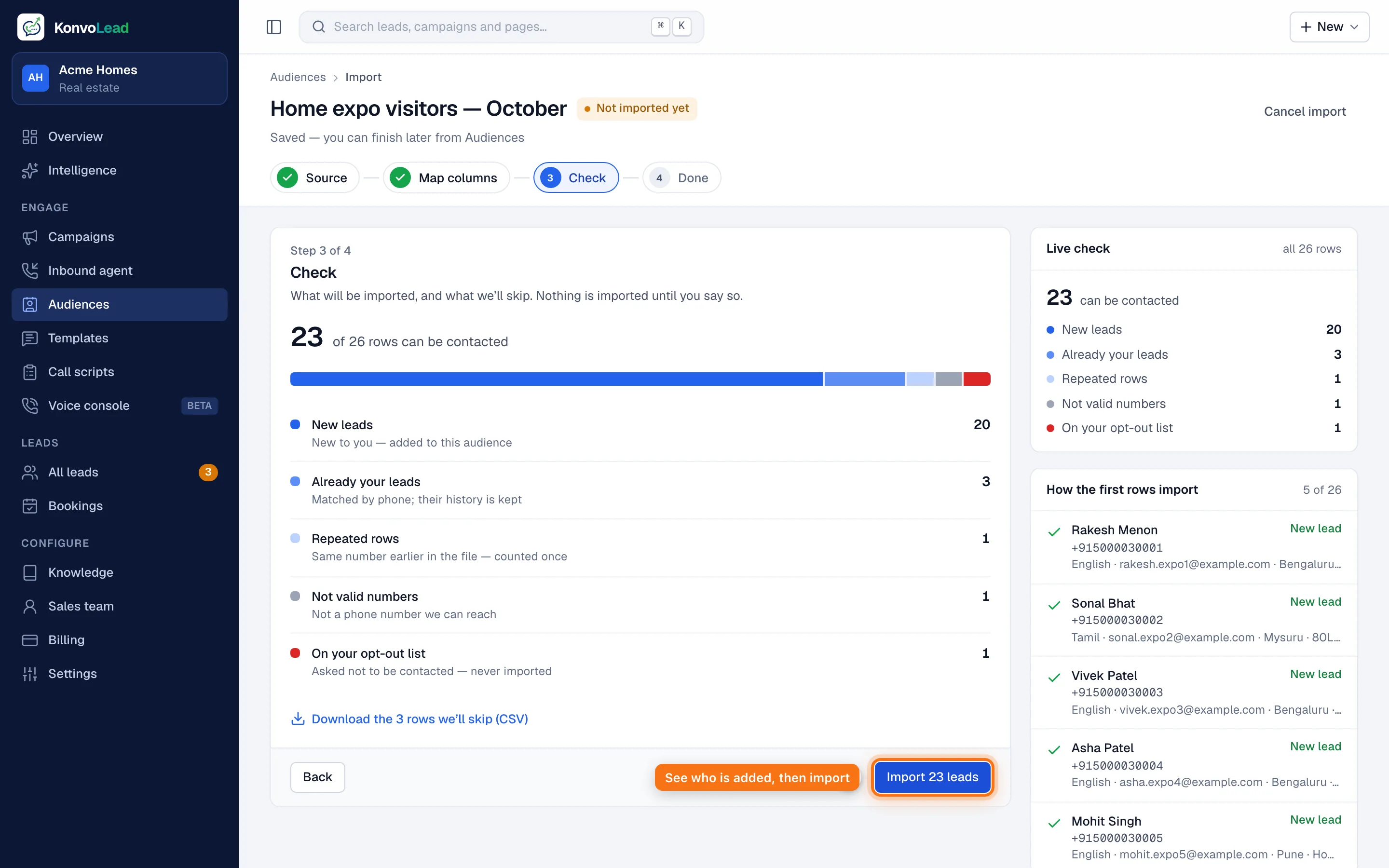
Step 3: Check
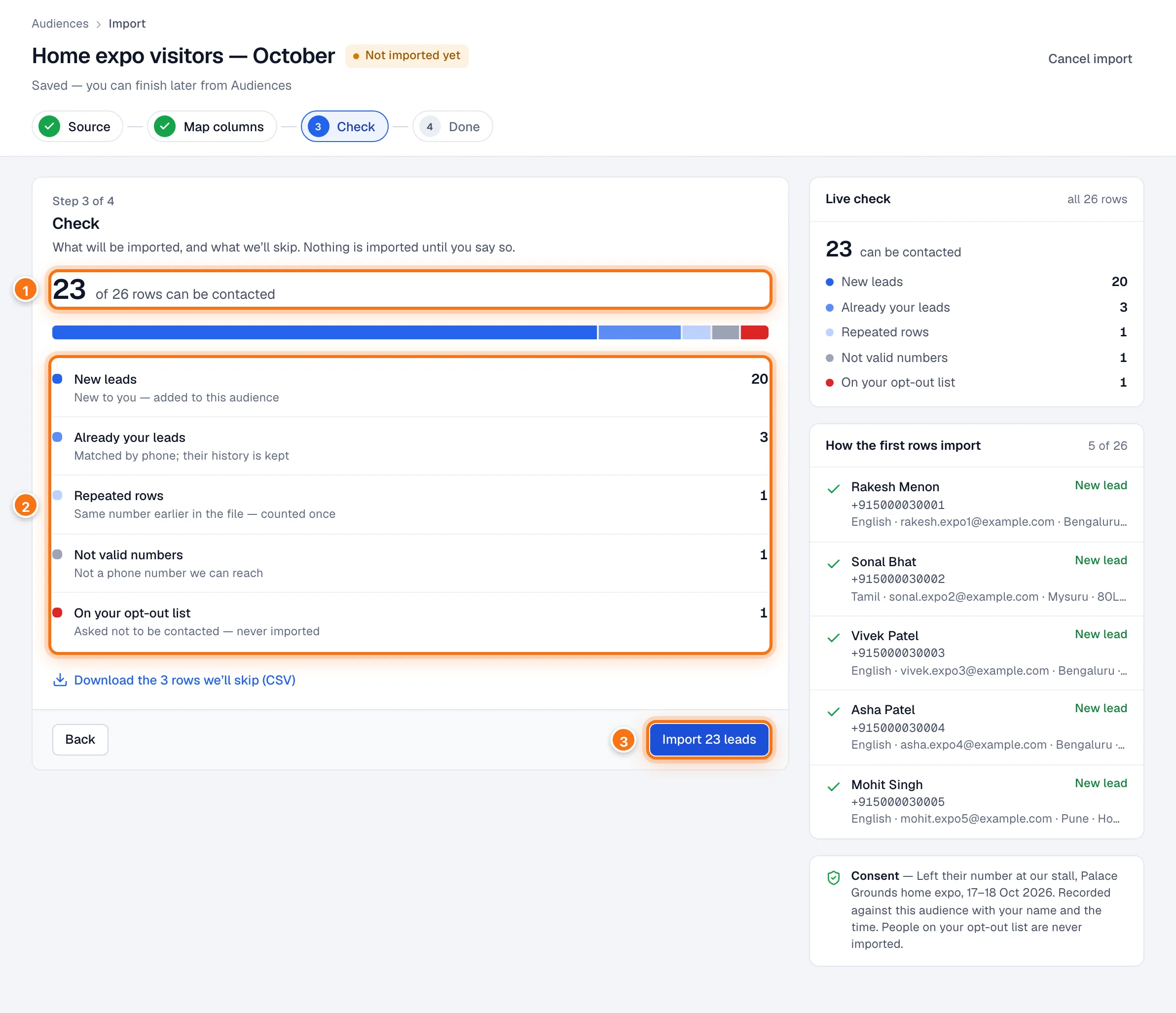
Nothing is imported until you confirm, so this is the moment to look.
How many people can be contacted, out of all the rows.
What happens to every row:
Group What it means In the audience? New leads People new to you. They become leads. Yes Already your leads Matched by phone number. Their history is kept, and empty details like a missing name are filled in. Yes Repeated rows The same number appears earlier in the file, so it is counted once. Once Not valid numbers Not a phone number we can reach. No On your opt-out list They asked not to be contacted. Never To fix the rows that will be left out, click Download the N rows we'll skip (CSV).
Click Import N leads.
Step 4: Done
You'll see how many leads are ready, how many are new, and how many rows were left out. From here you can Start a campaign with this audience, View audience, or download the rows that weren't imported as new.
Your audiences
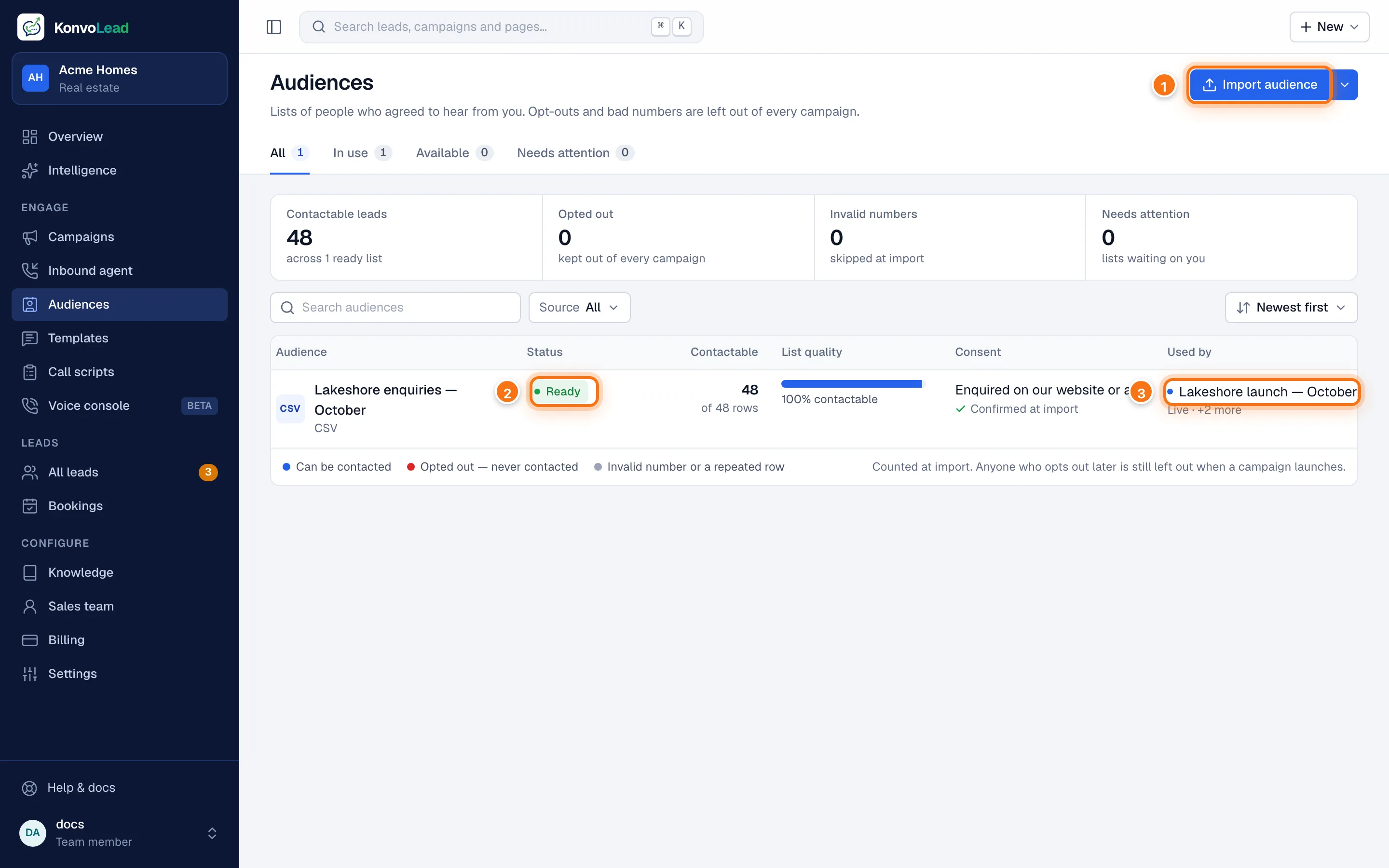
- Import audience starts a new import. The arrow beside it opens the other ways to import: a file or a Google Sheet.
- Status: Ready means it can be used in a campaign. Needs setup means the import was started but not finished. Click Finish setup to carry on, or Discard this import from the row's ⋯ menu.
- Used by shows the campaigns using the audience. One audience can feed several campaigns; your contact cooldown spaces out messages to anyone in more than one.
The tabs at the top filter the list: In use, Available (ready, not yet used) and Needs attention.
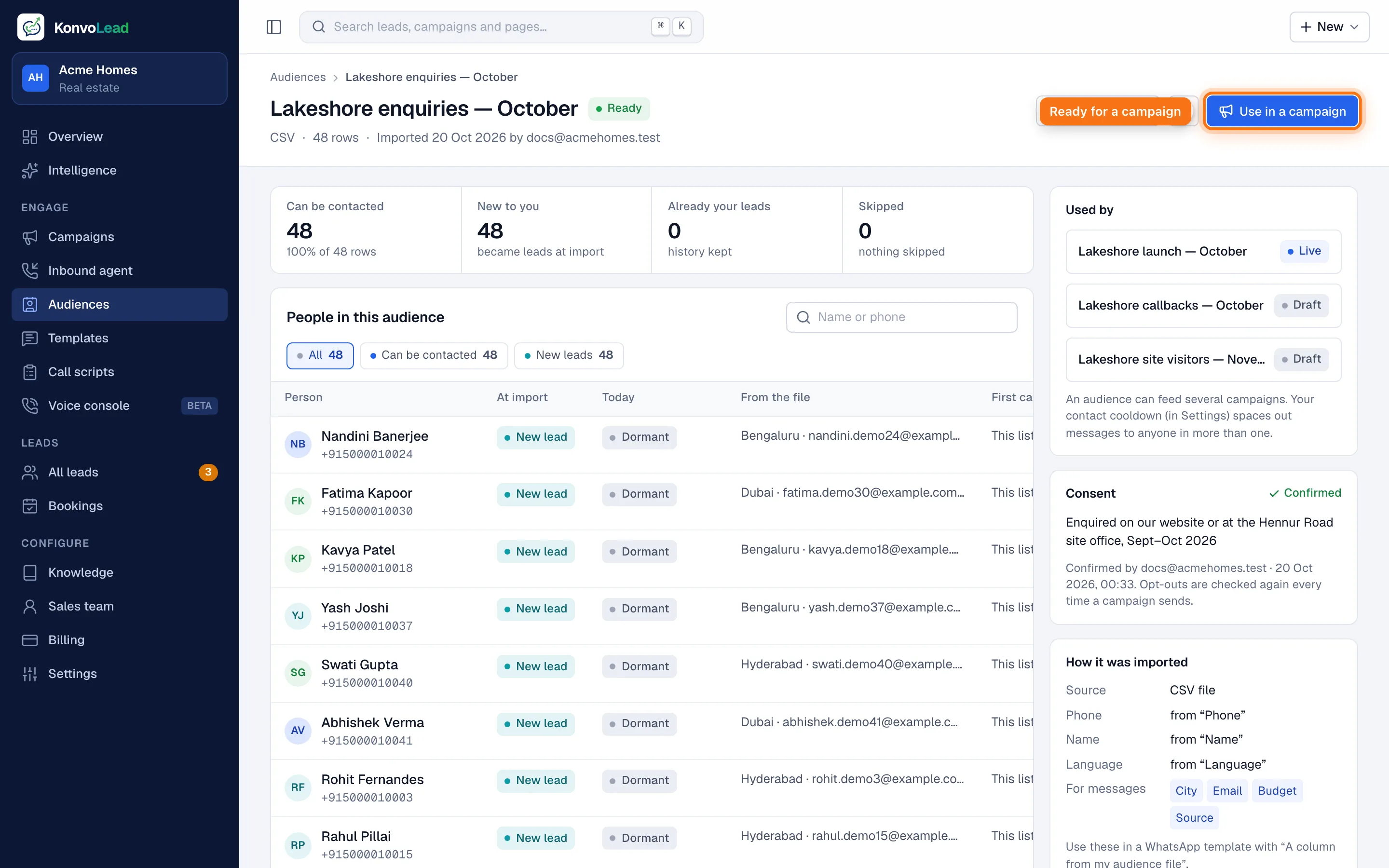
An audience's page
Click an audience to open it.
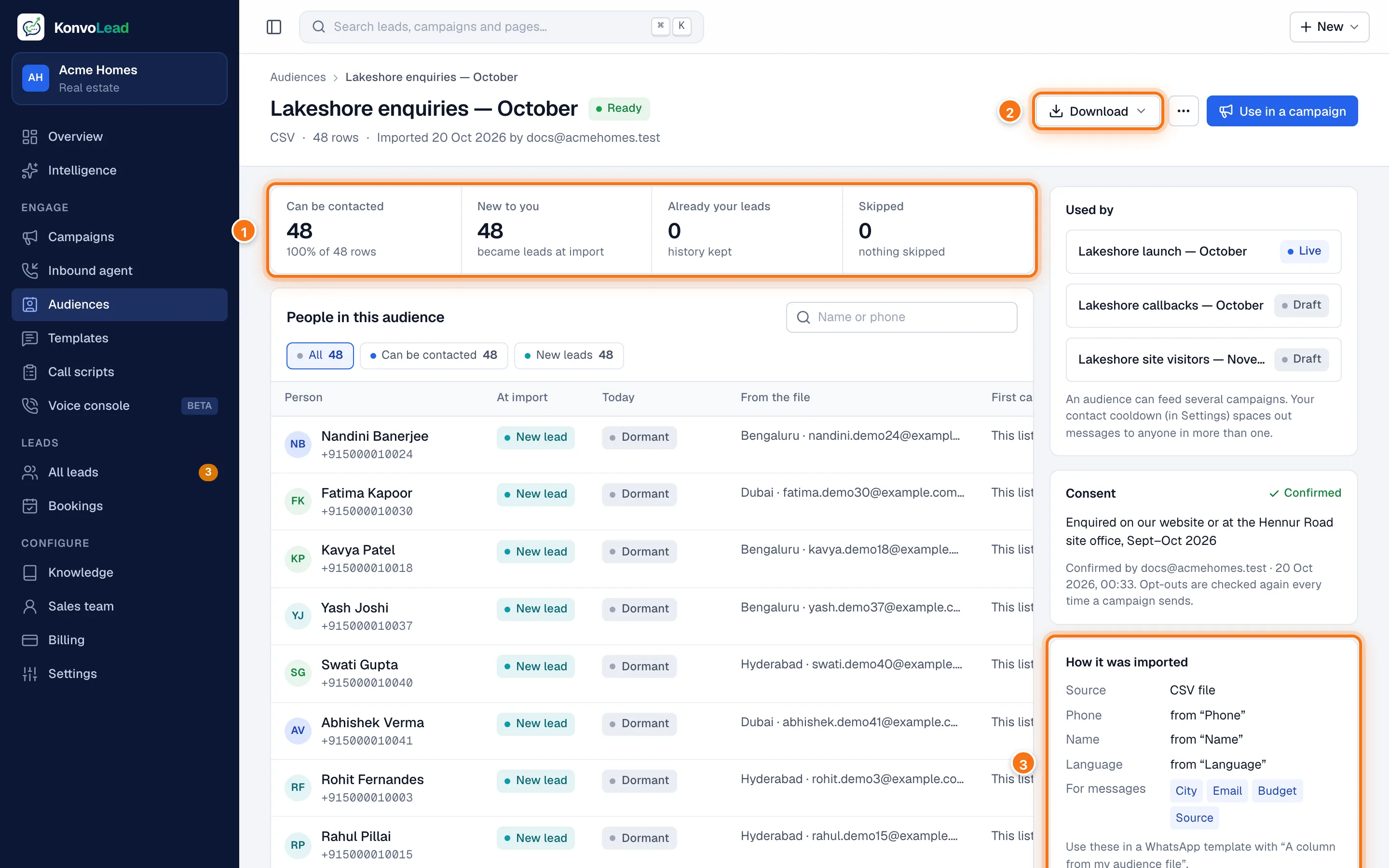
- The counts from the import: who can be contacted, who was new to you, who was already your lead, and what was skipped.
- Download: everyone who can be contacted, the skipped rows (with the reason for each), or every row exactly as imported.
- How it was imported: which column became the phone, name and language, and which were kept for messages.
The table lists every person with what happened to them at import and where they are today (for example Dormant until a campaign reaches them, With your team, or Opted out). To rename the audience, use the ⋯ menu.
Using extra columns in messages
Columns set to Keep for messages travel with each person. In a message template, fill a blank with A column from my audience file and type the column's name as it appears in your file (for example Budget). If a person's cell is empty, the blank's fallback text is used.
People who opt out later
You never need to clean a list by hand. Anyone who opts out after the import is left out when a campaign launches, and checked again just before every message or call.