
Places, pricing and FAQs
Some knowledge comes as a list rather than single facts: prices per configuration, places nearby, car variants, and questions and answers. Each has its own editor on the project's second tab. The tab's name depends on your industry:
| Industry | Tab name | What's on it |
|---|---|---|
| Real estate | Places, pricing & FAQs | Price list, places nearby, questions and answers |
| Automotive | Variants & FAQs | Variants, questions and answers |
| Loans, credit cards | FAQs | Questions and answers |
Price list (real estate)
One card per configuration, and per variant if it comes in more than one (for example two towers). Each card shows the sizes, the price, and where the price came from.
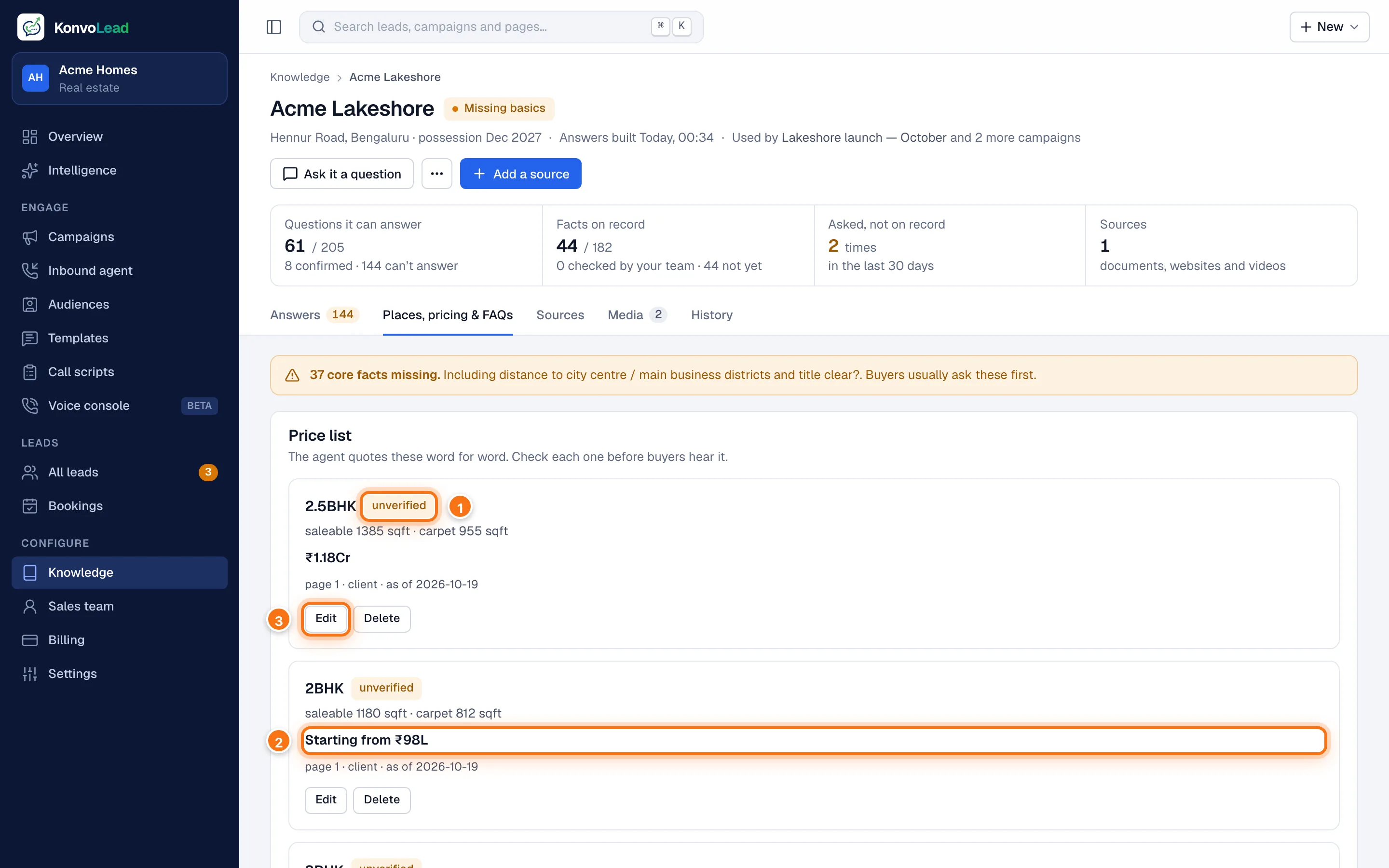
- unverified until someone on your team checks it.
- Starting from marks a marketing "starting from" price rather than a firm one. The agent says "starting from" too.
- Edit to check or correct the card.
The agent quotes these prices word for word. It never blends prices across configurations or estimates one that isn't here. If a configuration has no price on record, the agent offers to have a colleague confirm the price rather than guess. Check every card before buyers hear it.
Check or correct a price
Click Edit on the card.
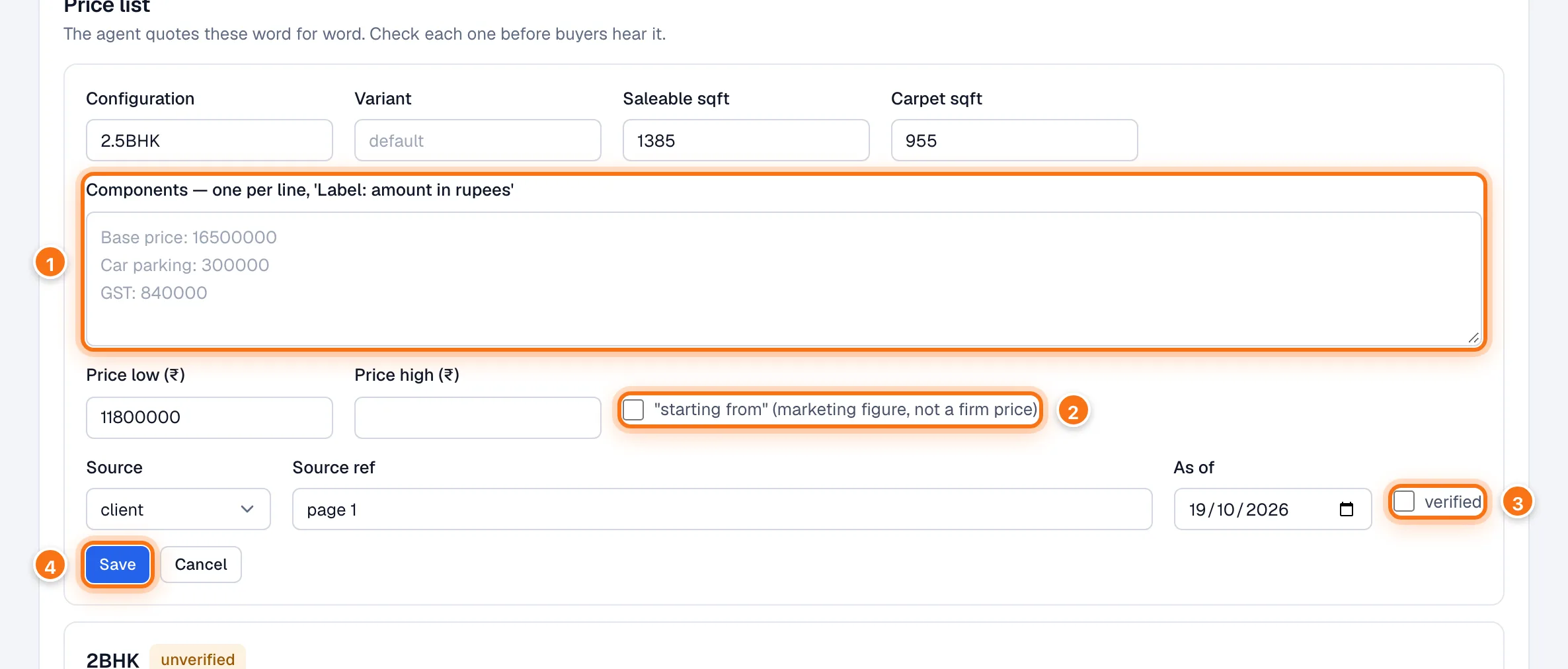
Check Configuration (for example 3BHK), Variant, Saleable sqft and Carpet sqft.
Under Components (1), write one line per item as
Label: amount in rupees, for example:Base price: 16500000 Car parking: 300000 GST: 840000Set Price low (₹) and Price high (₹).
Tick "starting from" (2) if the figure is a marketing starting price.
Set Source ref (for example "cost sheet p.3") and As of.
Tick verified (3).
Click Save (4).
To add a configuration, click Add configuration under the cards and fill in the same form. To remove one, click Delete.
Places nearby (real estate)
Schools, hospitals, shops, offices and transit near the project, with how far each one is. The agent uses them for questions such as "is there a school nearby?".
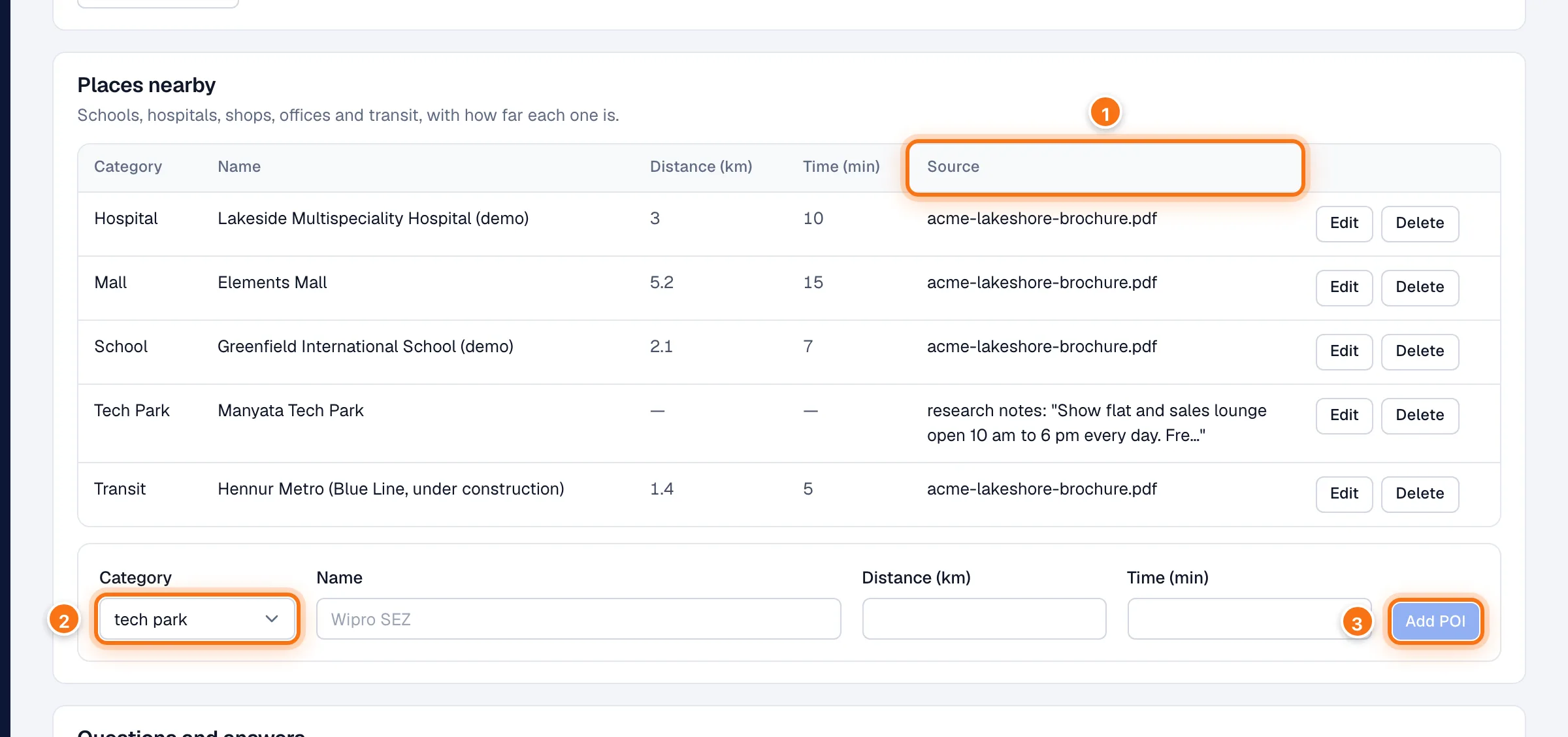
- Source says where each place came from: a document, your notes, or manual if someone added it by hand.
- To add a place, pick a Category, type the Name, and optionally the Distance (km) and Time (min). A dash means "not known"; leave them empty rather than guess.
- Click Add POI.
To change or remove a place, click Edit or Delete on its row.
Variants (automotive)
One row per variant, fuel and gearbox (and city, if prices differ by city), with the ex-showroom and on-road price, mileage, engine, airbags and colours. The agent quotes these word for word, so check each row before buyers hear it.
Questions and answers (every industry)
Question-and-answer pairs the agent can use as they are. Good for things your documents don't cover well, such as "Is the water supply reliable?".
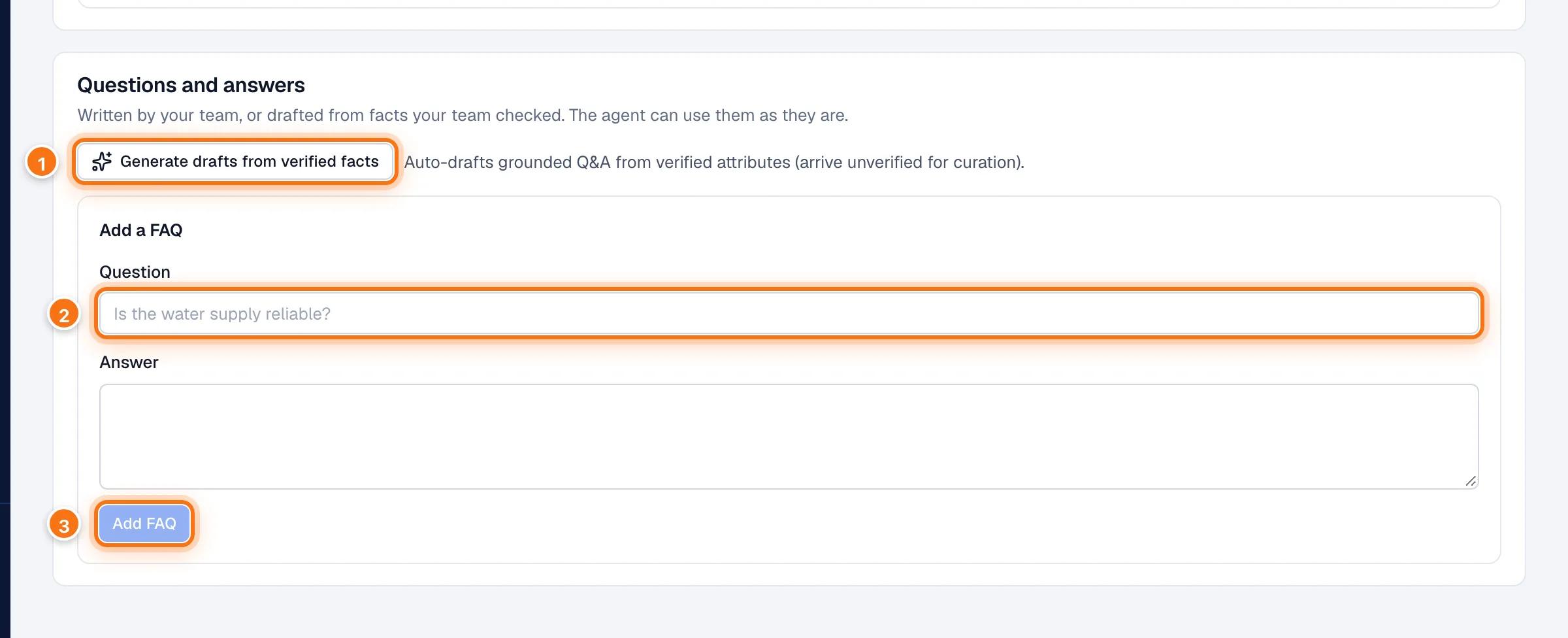
- Generate drafts from verified facts writes questions and answers from the facts your team has checked. They arrive unverified, so read each one, then Edit, Verify or Delete it.
- To add your own, type the Question and the Answer.
- Click Add FAQ. It starts unverified; click Verify once you're happy with it.
To change one, click Edit, change the text, tick or untick verified, and click Save.