Message templates
The WhatsApp messages your campaigns open with and follow up with: where they come from, how blanks are filled for each person, and how Meta approves them.
Why templates
WhatsApp only lets a business message someone first with a template: a message Meta (WhatsApp's owner) has reviewed and approved. So every campaign's opening message and follow-up is a template. Once a lead replies, the agent can chat freely for 24 hours from their last message. See Compliance.
Open Templates in the menu.
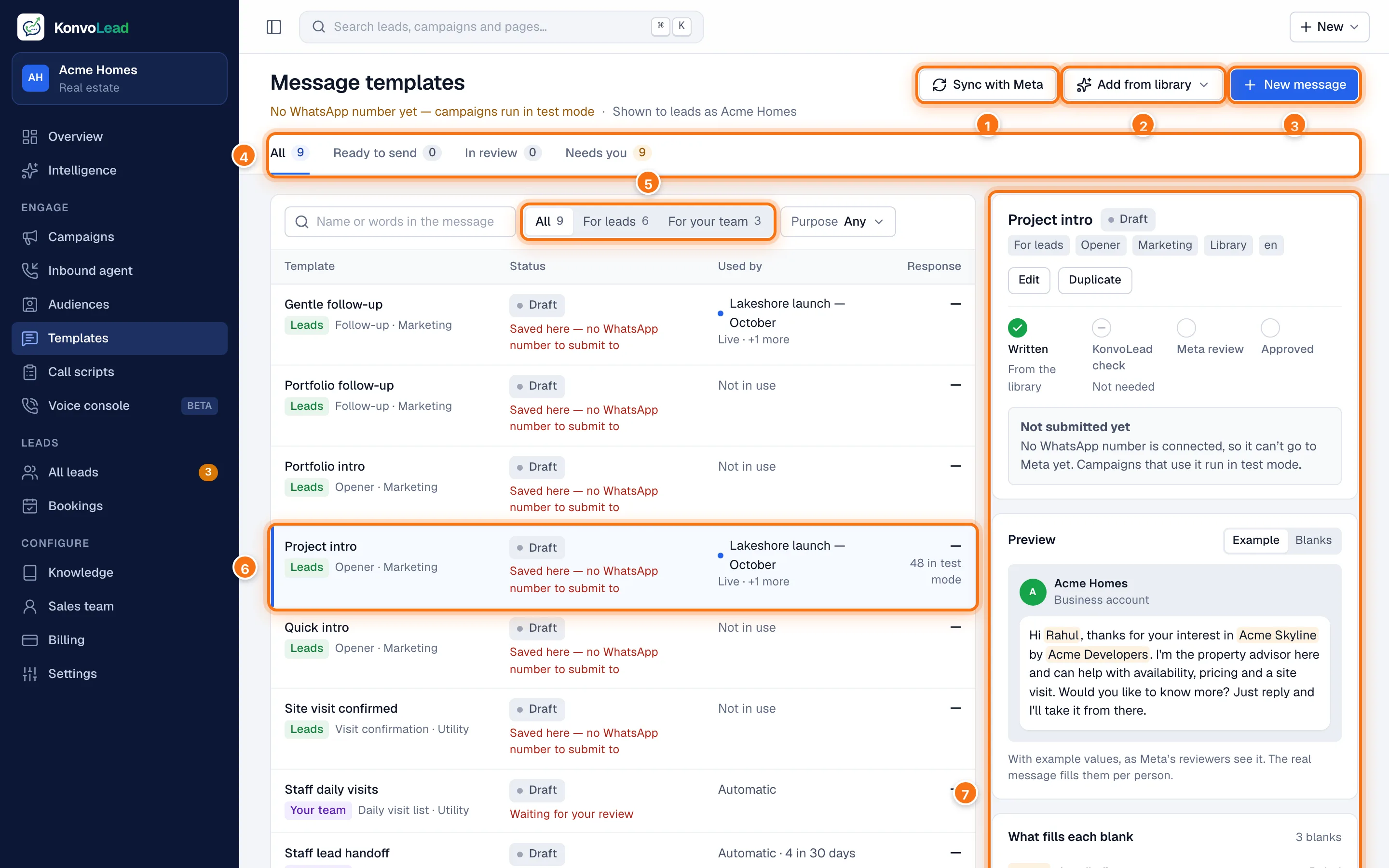
- Sync with Meta refreshes every message's status from Meta. It also picks up messages made in WhatsApp Manager and notices ones deleted there.
- Add from library adds ready-written messages. See Get messages from the library.
- New message writes your own. See Write your own message.
- Show All, those Ready to send, those In review, or those that Need you: drafts, and messages Meta rejected, removed or switched off.
- Show messages for leads, for your team (the WhatsApp messages your sales team gets), or both.
- Each message: its name, what it's for, its status, the campaigns that use it, and its Response (people who replied, out of messages sent).
- The message you clicked, with its approval, preview and results.
If no WhatsApp number is connected yet, the top of the page says No WhatsApp number yet — campaigns run in test mode. You can still write messages and run campaigns: in test mode nothing real is sent, and every message appears in the lead's conversation as if it had been. See Test mode.
Statuses
| Status | What it means | Shown under |
|---|---|---|
| Draft | Saved here, not sent for approval yet. | Needs you |
| With KonvoLead | A message you wrote, waiting for the KonvoLead team to check it. | In review |
| In Meta review | Meta is reviewing it. It can't be edited until Meta decides. Usually minutes, sometimes a day. | In review |
| Approved | Ready to send for real. | Ready to send |
| Rejected by Meta | Meta turned it down. Its reason is on the message. Edit it and save to send it again. | Needs you |
| Removed from Meta | It was deleted in WhatsApp Manager. Save it again to resubmit. | Needs you |
| Switched off by Meta | Meta has stopped it being sent. Campaigns can't use it. | Needs you |
A message, up close
Click a message to open it on the right.
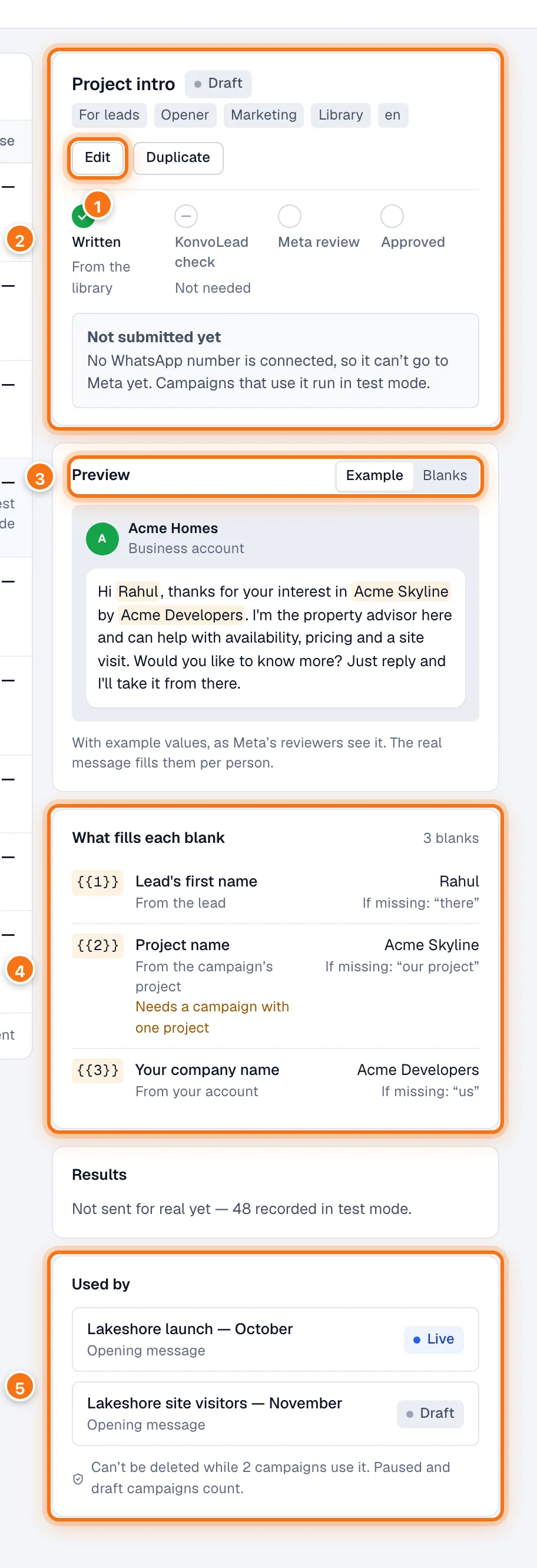
- Edit, and Duplicate to make a copy to change. Delete shows once no campaign uses it. An approved opening message also has Use in a campaign, and one waiting for the KonvoLead team has Withdraw request.
- Its way to approval: Written, KonvoLead check (only for messages you wrote), Meta review, Approved, with where it is now.
- Preview: Example shows it with example values, as Meta's reviewers see it. Blanks shows where each person's details go.
- What fills each blank: for each blank, what fills it, the example Meta sees, and what's used if a person's value is missing.
- Used by: the campaigns that use it, as opening message or follow-up.
Below these, Results shows how many were sent, delivered, read and replied to, and how many people opted out.
A message can't be deleted while a campaign uses it, including paused and draft campaigns: the panel says so instead. Stop or change those campaigns first.
Get messages from the library
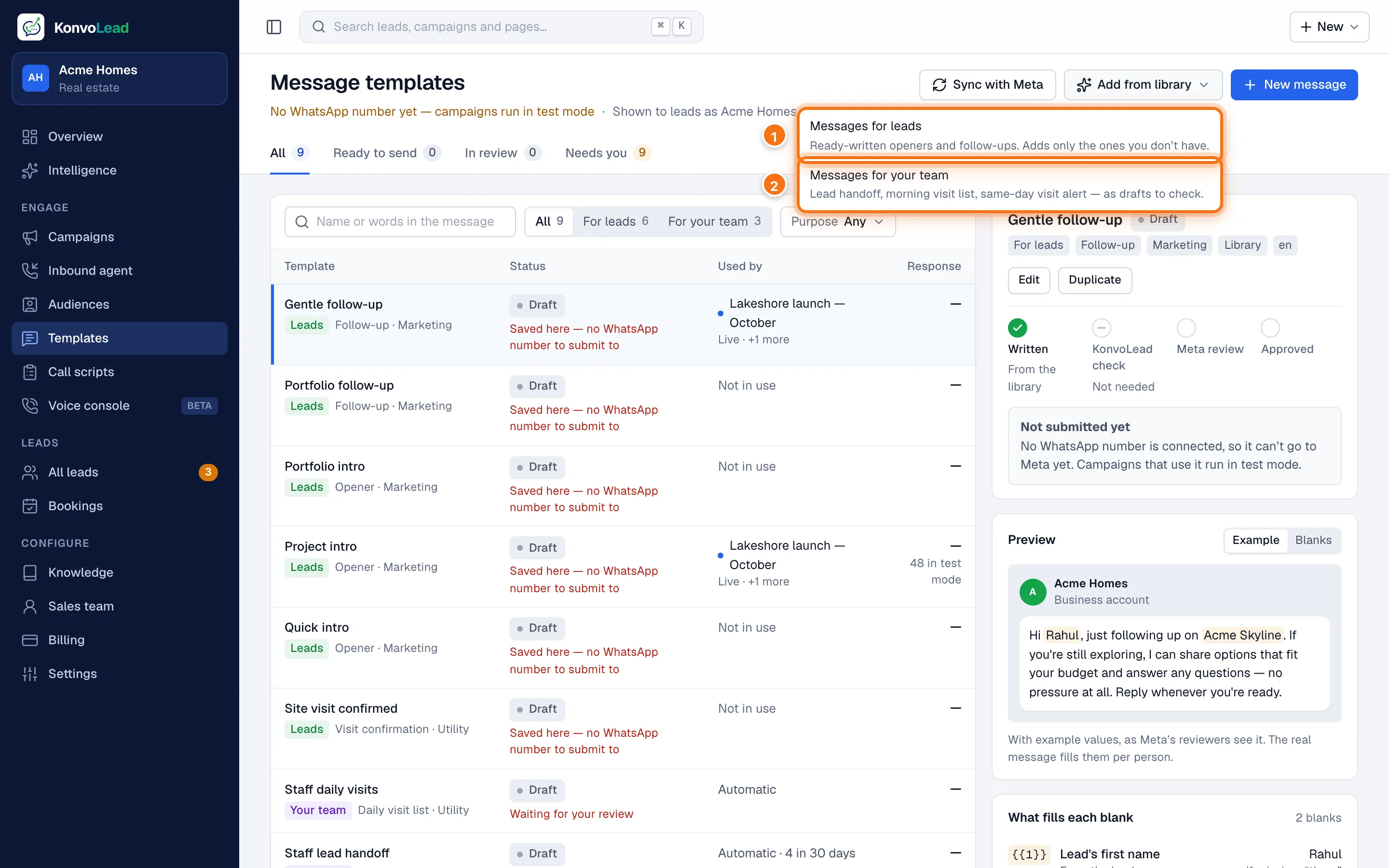
Click Add from library, then:
- Messages for leads: ready-written openers and follow-ups for a project or your whole portfolio. Only the ones you don't have yet are added.
- Messages for your team: the WhatsApp messages your sales team gets (a lead handed over, the morning visit list, a same-day visit). They arrive as drafts for you to check. See Messages to your team.
If your WhatsApp number is connected, the messages for leads go to Meta for approval straight away. If not, they're kept here as drafts until it is.
Write your own message
Click New message.
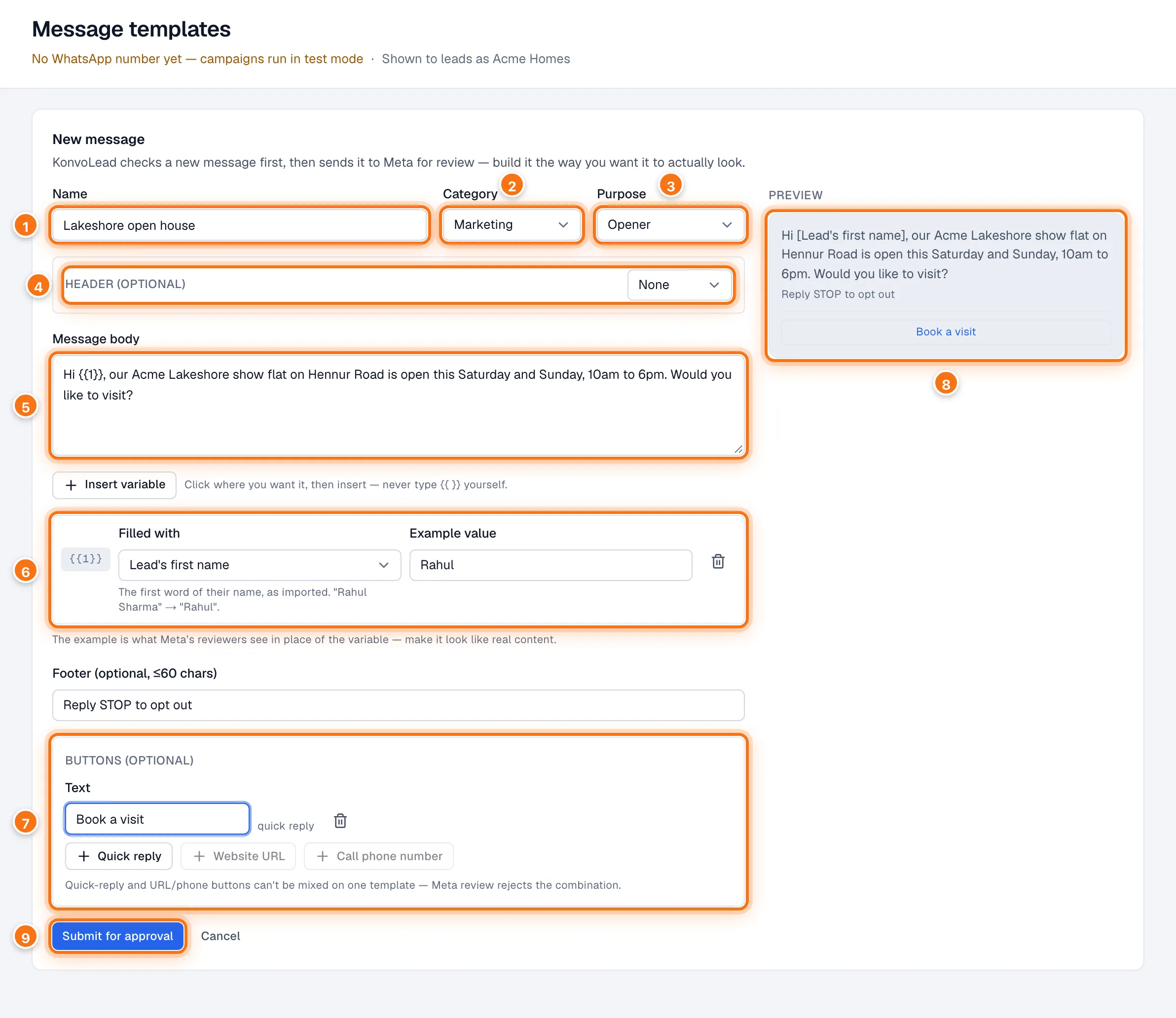
- Name: your own label, for example "Lakeshore open house". It can't be changed later.
- Category: Marketing for anything promotional, Utility for something the person is expecting, such as a visit confirmation. Meta decides the final category.
- Purpose: Opener (a campaign's first message), Follow-up (to people who didn't reply), or Visit confirmation.
- Header (optional): Text (up to 60 characters, no emoji), Image (JPEG or PNG, up to 5 MB), Video, or Document (PDF, up to 100 MB).
- Message body: the main text. To add a blank that's filled in for each person, click where it should go, then Insert variable. Never type
{{ }}yourself. - For each blank, choose what it's Filled with, and give an Example value. Meta's reviewers see the example in its place, so make it look real, for example "Rahul".
- Buttons (optional): up to 3 Quick reply buttons (for example "Book a visit", "Not right now"), or up to 2 buttons that open a Website URL or Call phone number. You can't mix the two kinds.
- The preview, as the person will see it.
- Click Submit for approval.
You can also add a Footer (optional, ≤60 chars), for example "Reply STOP to opt out".
A message you write goes to the KonvoLead team first (With KonvoLead). Once it's checked, it goes to Meta for review.
What a blank can be filled with
| Group | Choices |
|---|---|
| About the lead | Lead's first name, full name, phone number, the configuration they're interested in |
| About the project | Project name, location, city |
| About your company | Your company name |
| About their booking | Confirmed visit time |
| Projects picked for the lead | Suggested project 1, 2 and 3: one line each with name, configurations, area and starting price, picked to fit the lead (your newest projects if nothing is known about them) |
| From your audience file | A column from my audience file…: type the column's name exactly |
| Fixed text | Custom — the same text for everyone…: type the text |
A message with a project blank can't open a General campaign, because there's no single project to fill it with. The campaign form greys it out with "names a project".
Edit a message
Click the message, then Edit.
- Changing the wording, header, footer or buttons of an approved message sends it back to Meta. It can't be sent until Meta approves it again, so change it when no campaign needs it.
- Changing only what fills a blank doesn't need approval again.
- Saving a Draft, Rejected by Meta or Removed from Meta message sends it to Meta.
- A message In Meta review can't be edited until Meta decides.
- The Name can't change. Use Duplicate to make a copy under a new name.
Send a test
An approved message for leads has Send a test beside it. Type your own WhatsApp number, with + and the country code (for example +91 98765 43210), and click Send test. It arrives on WhatsApp with the example values, from the number your campaigns use, so you see it exactly as a buyer will.
- Each test costs one message. You can send 5 tests in 10 minutes.
- It isn't offered for messages to your team: a tap on their buttons would act on a real lead.
- It isn't offered while WhatsApp can't send the message. The message's panel says why.
Messages and your WhatsApp account
Meta approves a message for one WhatsApp account, and sends it only from that account. So when you connect your own WhatsApp number, its account starts with no messages. Click Copy my templates here on the WhatsApp page to send your approved messages to Meta again for it. See Connecting your own WhatsApp number.
A message marked Approved on an account you no longer send from can't go out: you no longer have a number on the account Meta approved it on. Copy it to your current account, as the message says.
Messages to your team
The messages your sales team gets on WhatsApp are templates too. Add them with Add from library, then Messages for your team. Each arrives as a Draft, marked Waiting for your review. Open each one, check the wording, click Edit, and save: saving sends it to Meta.
Only the wording can change. The name, category, header, buttons and blanks are fixed, because KonvoLead fills them in itself. Sales team → Their WhatsApp messages shows all three with where each stands. See Your team's WhatsApp messages.