
Reports and downloads
How to download a campaign's results, the list of campaigns, and an audience as spreadsheets.
A campaign's report
Open the campaign and click Report at the top. The file has every lead in the campaign.
To download only some leads, open the Leads tab, click a state (for example Needs human), and use the link under the table.
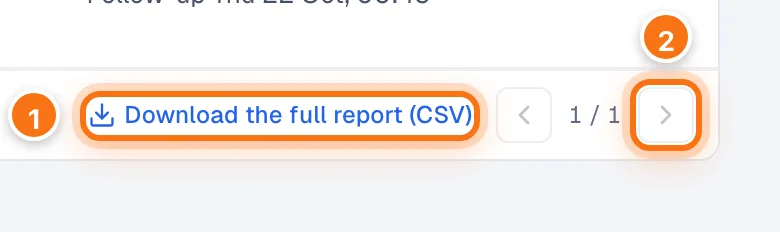
- Download the full report (CSV), or Download these leads (CSV) when a state is picked.
- The arrows move between pages of the table; the download always has every lead, not only the page shown.
The file opens in Excel or Google Sheets. Each row is one person:
| Column | What it holds |
|---|---|
| Name, Phone | Who they are. |
| State | Where they are in this campaign, in the same words as the page, for example "Not interested". |
| Step | The Journey bar that counts them, for example "Replied". |
| Last channel | WhatsApp or Call: how we last tried them. |
| Attempts | How many times we tried them. |
| Last activity | When something last happened. |
| Next | What happens next, for example "Follow-up Thu 22 Oct, 00:45" or "With your team". |
| Lead page | A link to the lead's page. |
A qualifying campaign's report also has Outcome and Reason (how the call or chat ended, by your script's endings), Booking time if they agreed a visit, and Plays used (the selling lines the agent was given).
A report holds up to 10,000 leads. A larger campaign's file says how many were left out.
The list of campaigns
On Campaigns, click Export to download the campaigns shown, one row per campaign with its figures. Filter the list first to download only some.
An audience
Open an audience from Audiences and click Download. Choose everyone who can be contacted, the skipped rows (with the reason for each), or every row exactly as imported. See Importing an audience.
Other figures
- Each lead's full conversation, calls and details are on their lead page.
- How all your campaigns and your Inbound agent are doing together is on Overview. See Overview and Buyer Intelligence.