
Keeping knowledge up to date
What updates the agent's answers, how long it takes, how to see what changed, and a simple routine to keep a project right.
What updates the answers
The agent's prepared answers rebuild by themselves after any of these:
| You did this | What happens | How long |
|---|---|---|
| Added documents or notes (Add a source) | They're read, the facts merged, then the answers rebuilt | A minute or two a document, then a few minutes |
| Uploaded a New version of a document | The same, and what only the old version said is taken out | The same |
| Added a website, or clicked Read again | The site is read, then the answers rebuilt | A few minutes |
| Added a video | The video is read | A minute or two |
| Saved changes on the Answers tab | The categories you changed are rebuilt | About a minute |
| Removed a source | Saved answers are taken back straight away and rebuilt | A few minutes |
| Clicked Rebuild every answer (under …) | Every answer is rebuilt | A couple of minutes |
You don't have to stay on the page; it updates by itself. While answers rebuild, the agent keeps answering. It looks each question up instead, which is correct but slower.
How to tell an answer is out of date
- On the Answers tab, a note under a fact says when it changed after the answer was built: the agent says the new value once the answers rebuild.
- At the top of the project's page, Answers built says when the answers were last built.
- On the Knowledge page, a project marked Updating or Rebuilding answers is mid-way through.
See what changed
The project's History tab lists every time a source was read and what it changed. For the full detail, click See each read's changes, fact by fact, or … then Each read's changes, fact by fact.
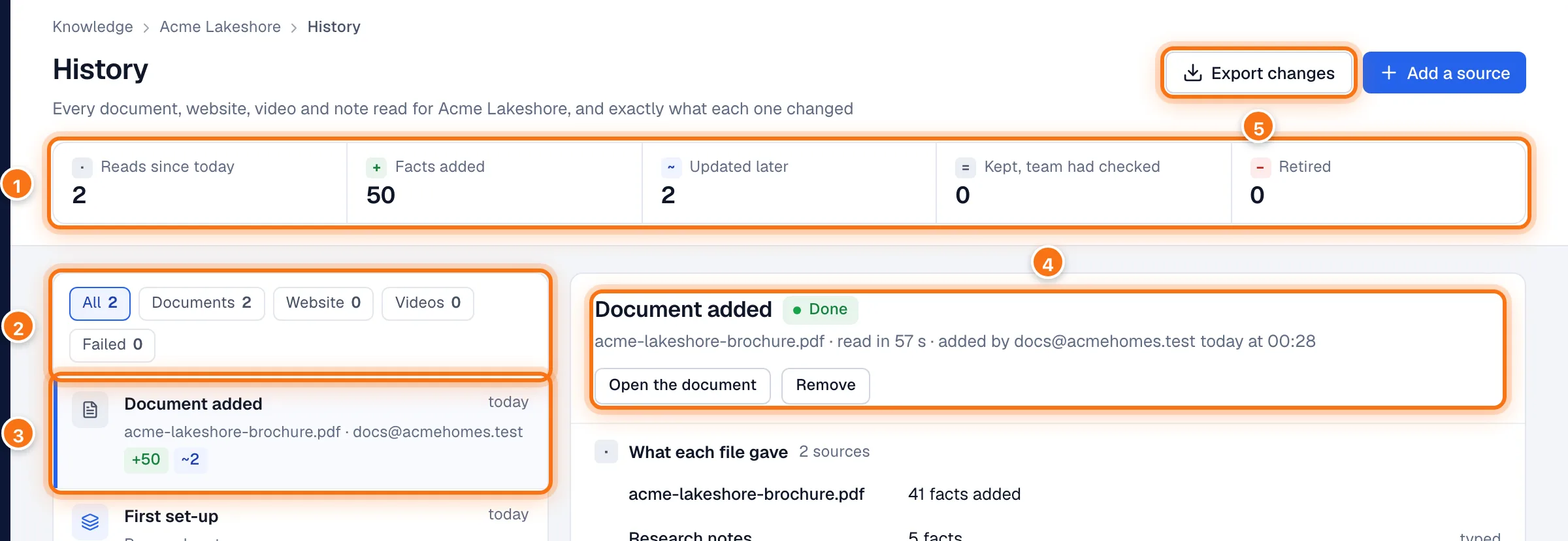
- The totals: reads, facts added, facts updated later, facts kept because your team had checked them, and facts retired.
- Show all reads, or only documents, websites, videos, or reads that failed.
- Each read: what was read, who added it, and what it changed (+ added, ~ updated).
- The read you picked, with Open the document and Remove. Below it, what each file gave, then every change, fact by fact:
- Prices: price lines added or changed.
- Updated: the old value crossed out, then the new one.
- Added: new facts.
- Disagrees with what your team checked: the read says something else. The agent still says what your team checked; if the read is right, change the fact on the Answers tab.
- Kept, because your team had checked them.
- Retired: facts this source no longer says.
- Held back: the read said far less than the one before, so the older facts were kept. Click Retire them anyway if the new read is right.
- Export changes downloads every change as a spreadsheet.
Facts your team checked are protected
A checked fact is never changed by a new document, a new version or a website read again. If one disagrees, the History page says so, and you decide which is right.
A simple routine
When something changes (a new price list, a new offer, the possession date moves):
- Upload the new file with New version on the old one's row, not as a new document.
- When it's read, open the History page and check what changed.
- Look for Disagrees with what your team checked, and fix any checked fact that's now wrong.
- Check the new prices on the Answers tab.
Every month:
- Click Read again on your project's website.
- On the Answers tab, show Can't answer and fill in what you can.
- Check the yellow box for prices and rates nobody has checked.
- Ask the agent the five questions buyers ask most, with Ask it a question.
When the agent says something wrong: find the fact on the Answers tab and correct it. Don't try to fix it in a chat. If the wrong statement came from a source, upload a corrected version of that source, or remove it.